A step-by-step manual of every link.tj feature with screenshots — from your first link to platform administration.
Getting started
Sign up & sign in
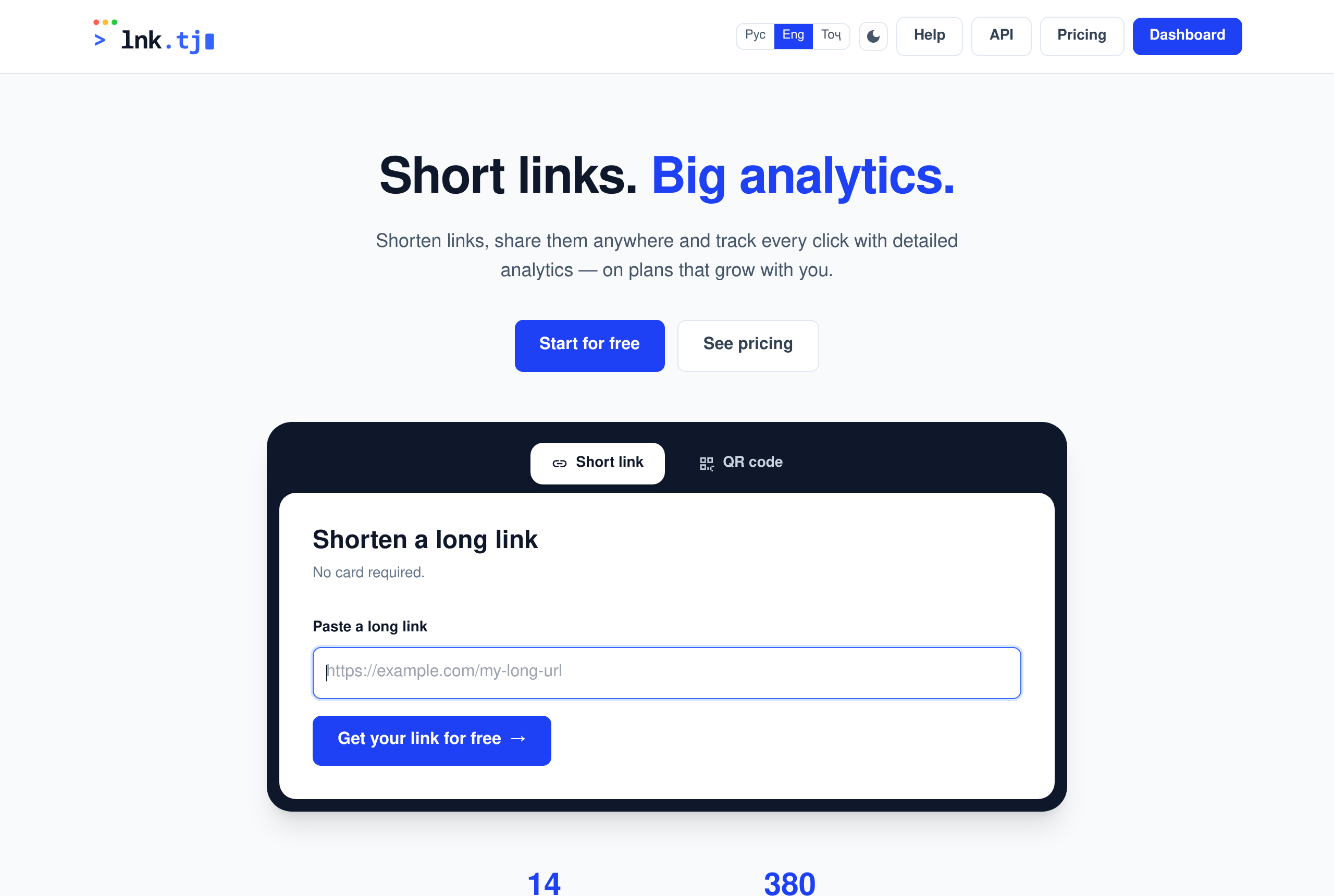
link.tj is a short-link service with analytics, teams and plans. Create an account in a minute — no card for the free plan.
On the home page click “Get started” or “Start for free”.
Enter your name, email, phone and a password (8+ chars).
Click “Send code” — an SMS activation code arrives; enter it in the field under the phone.
Click “Create account” — once the number is confirmed you land in the dashboard on the “Free” plan.
To sign in later, use “Sign in” in the header.
The phone is confirmed by an SMS code right in the sign-up form. No card needed for the Free plan.
Dashboard overview
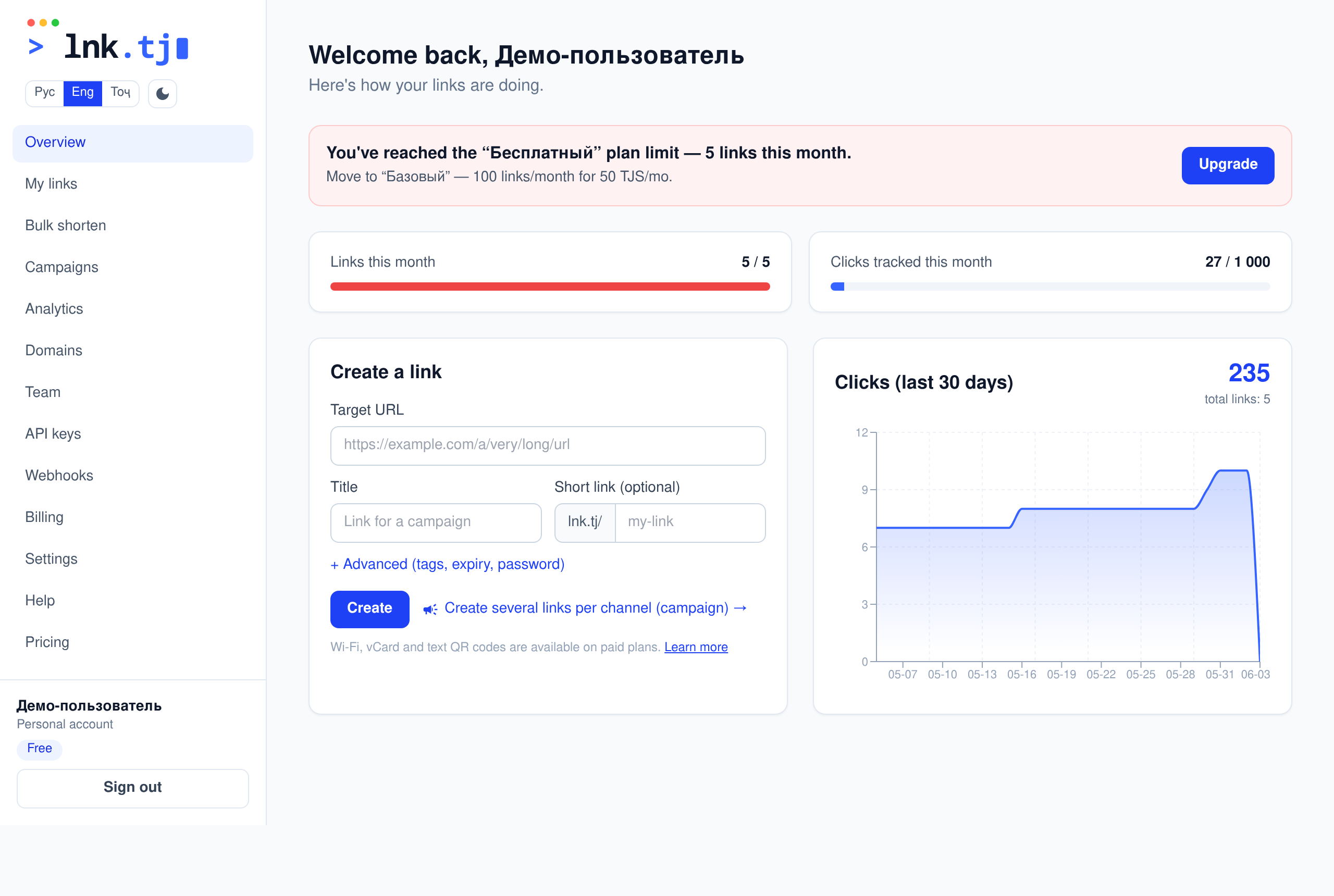
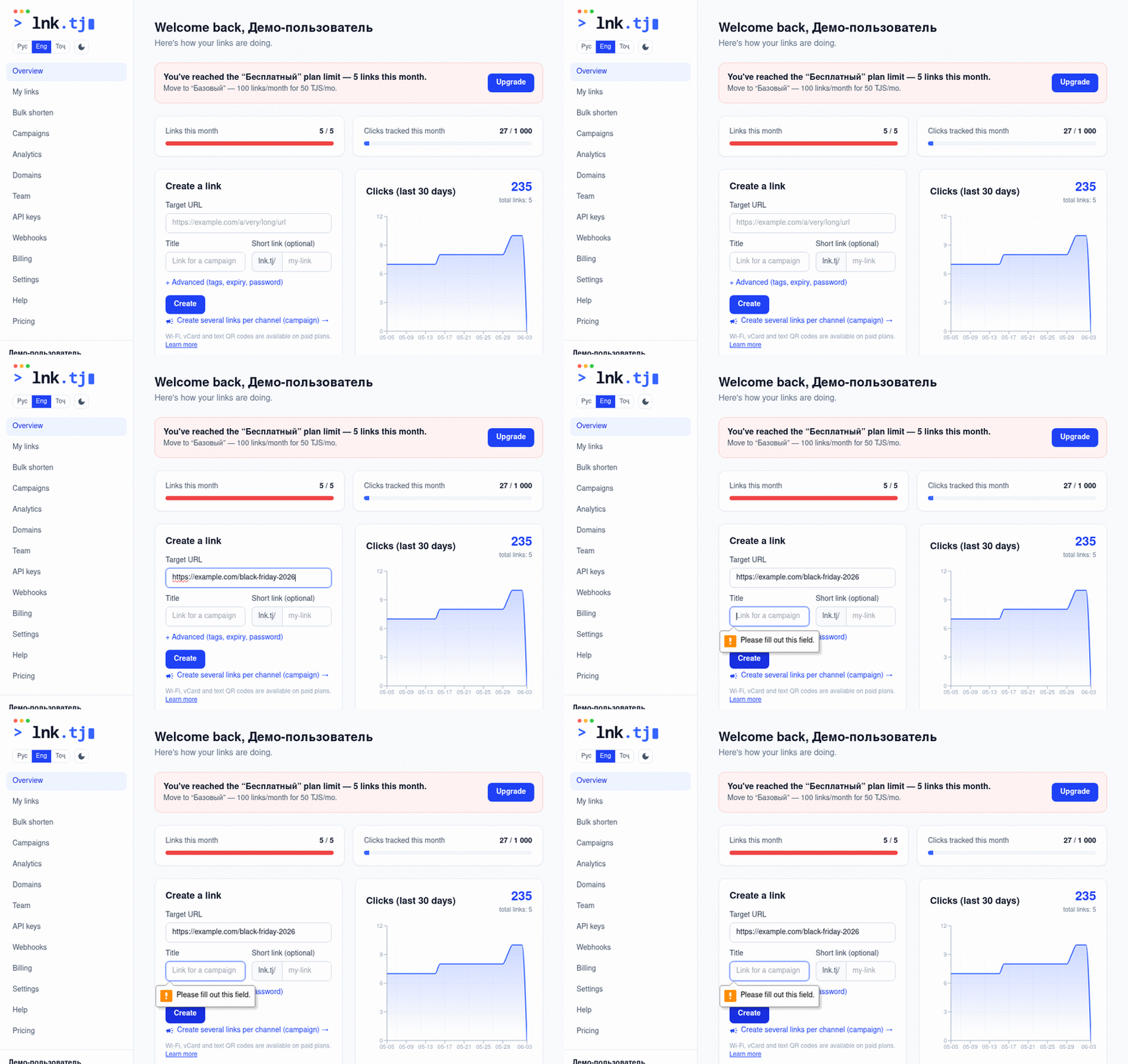
The main screen shows your monthly usage, the link-creation form and a clicks chart. On the left — navigation and the workspace switcher.
The “Links this month” bar shows what's left on your plan; next to it is your monthly clicks counter.
If you're near a limit, a hint to upgrade appears.
The “Workspace” switcher (top left) changes context: personal account or company.
Notifications
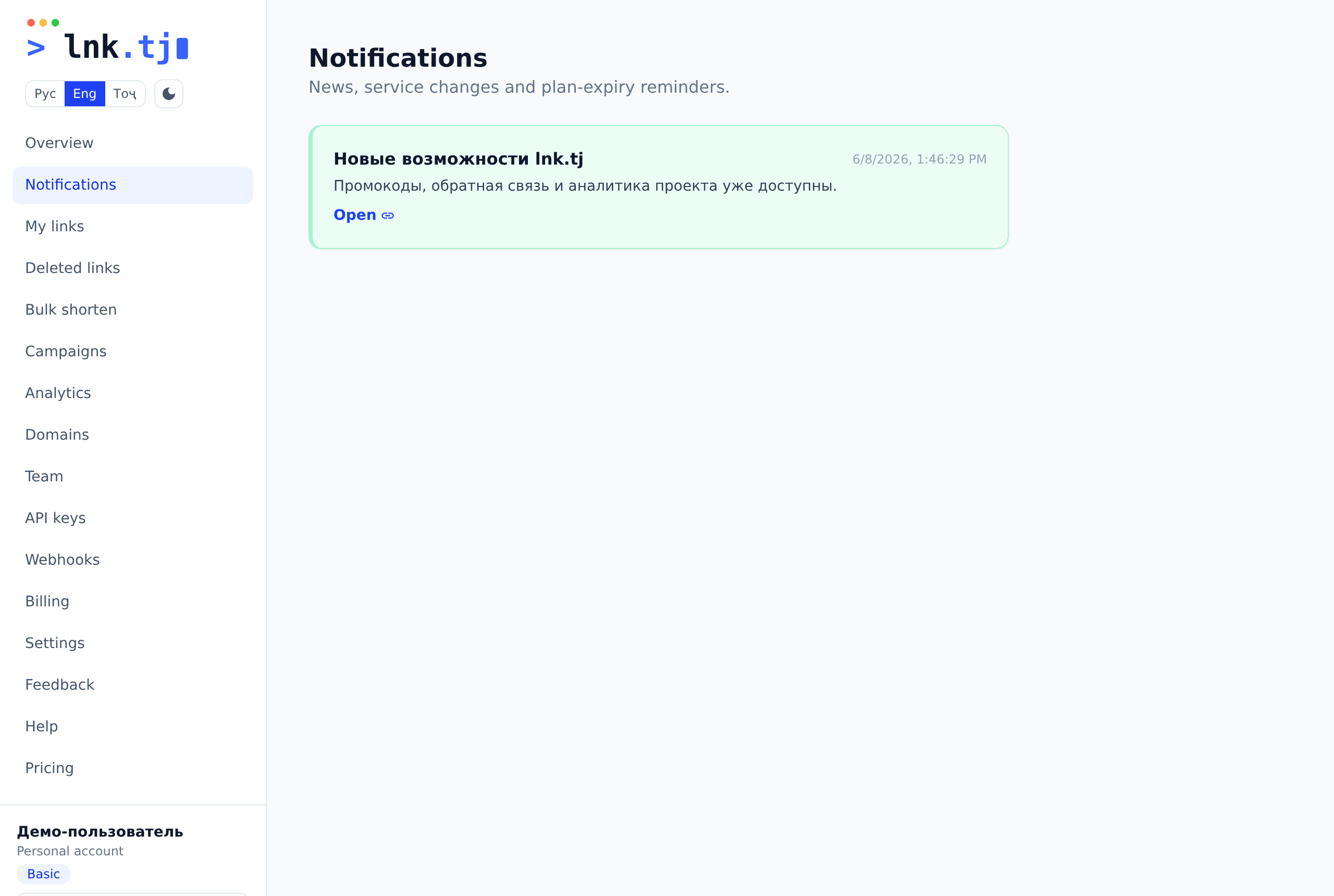
Your dashboard has a “Notifications” section: service news and changes, plus reminders that your plan is about to expire. Unread items show a counter in the menu.
The counter next to “Notifications” shows how many are unread.
Seven days before your plan ends you get a daily reminder — prompting you to renew or upgrade.
When you hit the Free-plan link limit, you get an upgrade prompt — in the dashboard, plus Telegram (if the bot is linked) and SMS.
Opening the section marks everything as read.
Dark and light theme
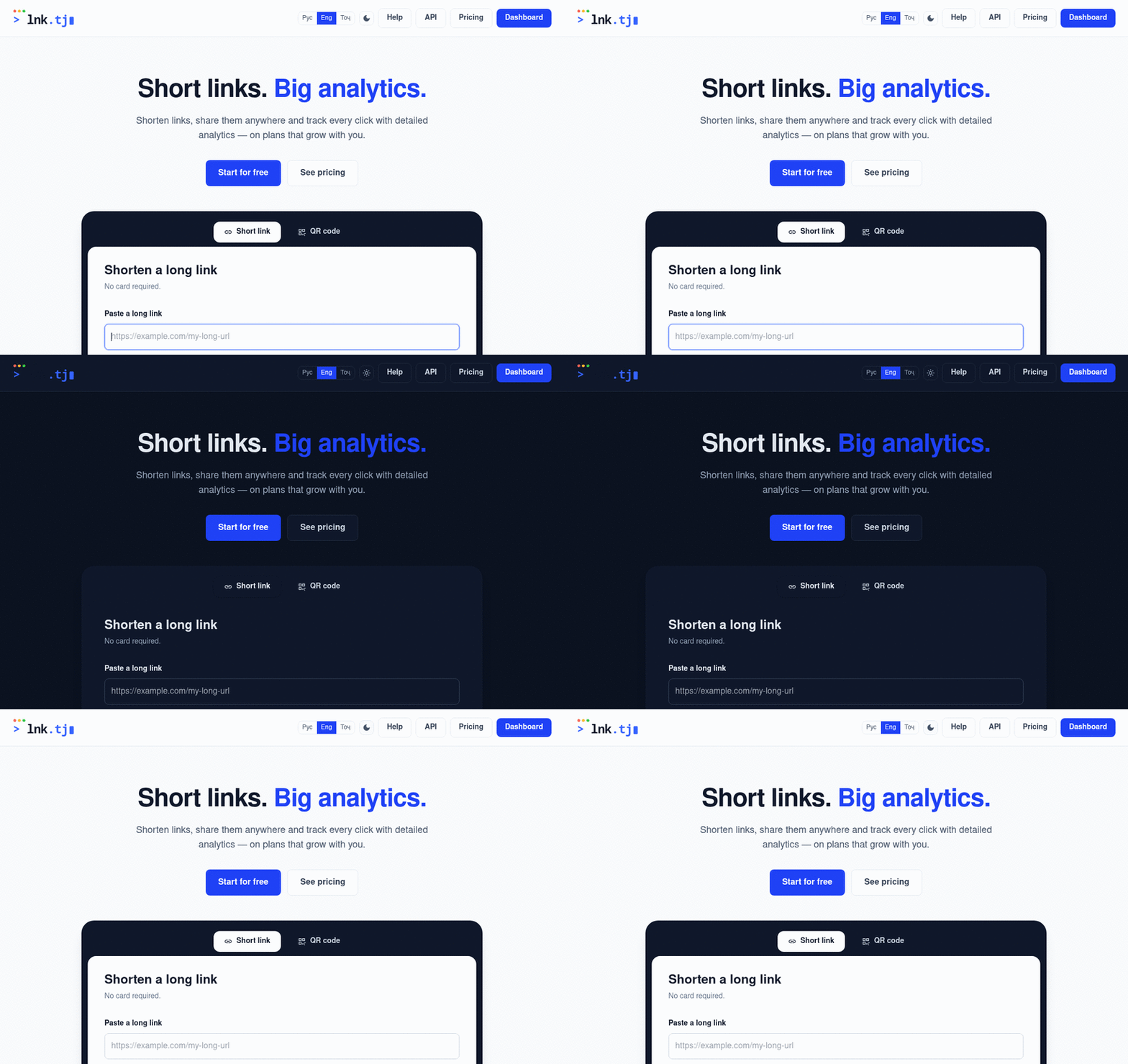
The interface supports a dark theme. The toggle (☀️/🌙) is in the site header and the dashboard; your choice is remembered.
Demo · how it works
Click the theme icon in the header.
The theme switches instantly and is saved for next visits.
Links
Creating a short link
You can shorten a link right on the Overview. The slug (link tail) is generated automatically or set manually.
Demo · how it works
Paste a long URL into the “Target URL” field.
Optionally set a “Title” and your own slug (e.g. promo).
Click “+ Advanced” to set tags, expiry, click limit and a password.
Click “Shorten” — the short link appears with a “Copy” button.
Custom slugs and bulk creation are on paid plans. There you'll also see type tabs above the form — Wi-Fi, vCard and text (see “Link types”).
Link list, search and folders
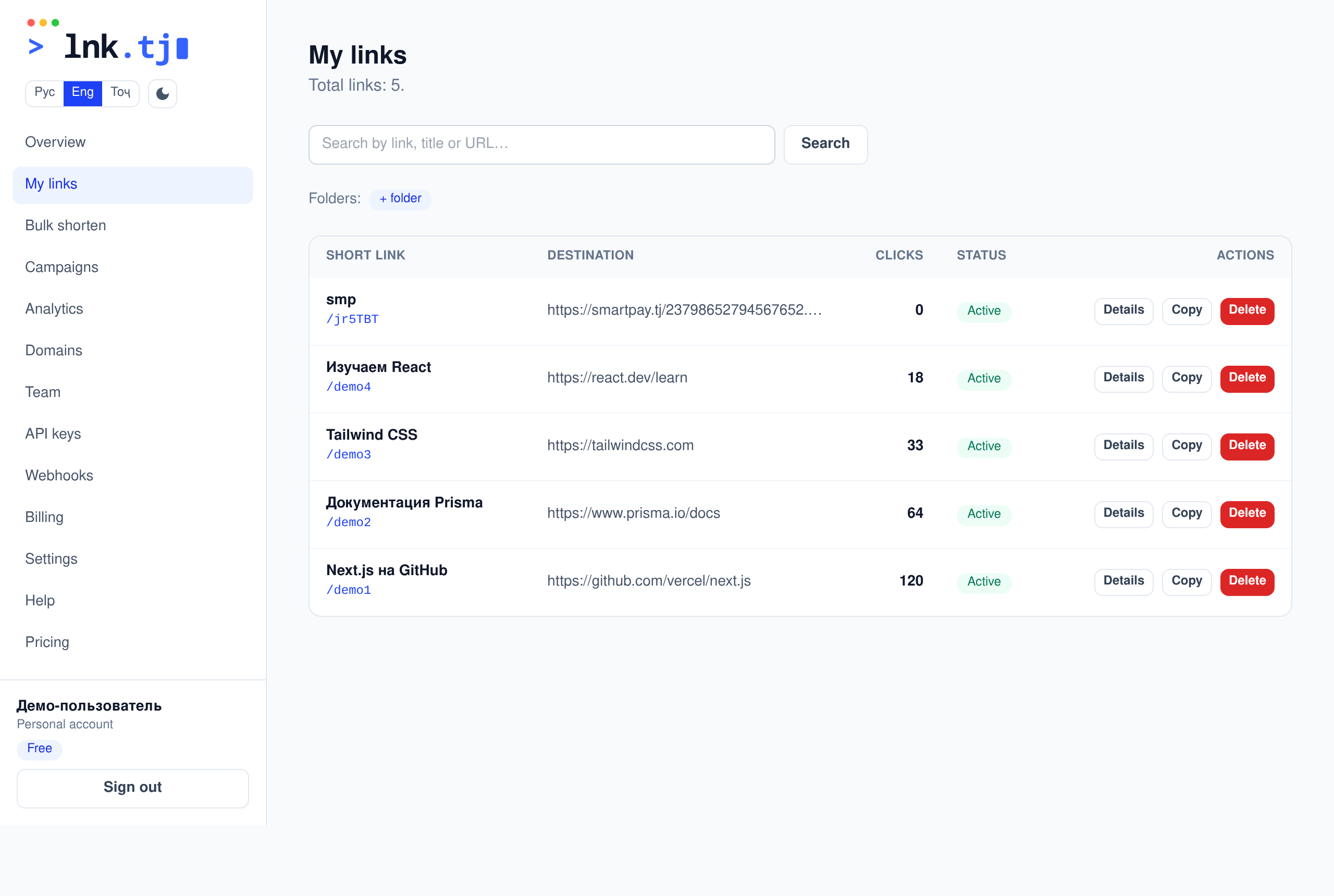
“My links” shows all your links with clicks, status, tags and folders. There's search and filters.
Search by slug, title or URL.
Filter by tags (#promo) or folders.
Create a folder with “+ folder” and organize links.
“Details” opens the link page; “Copy” copies the short URL.
Link page: editing, QR, analytics
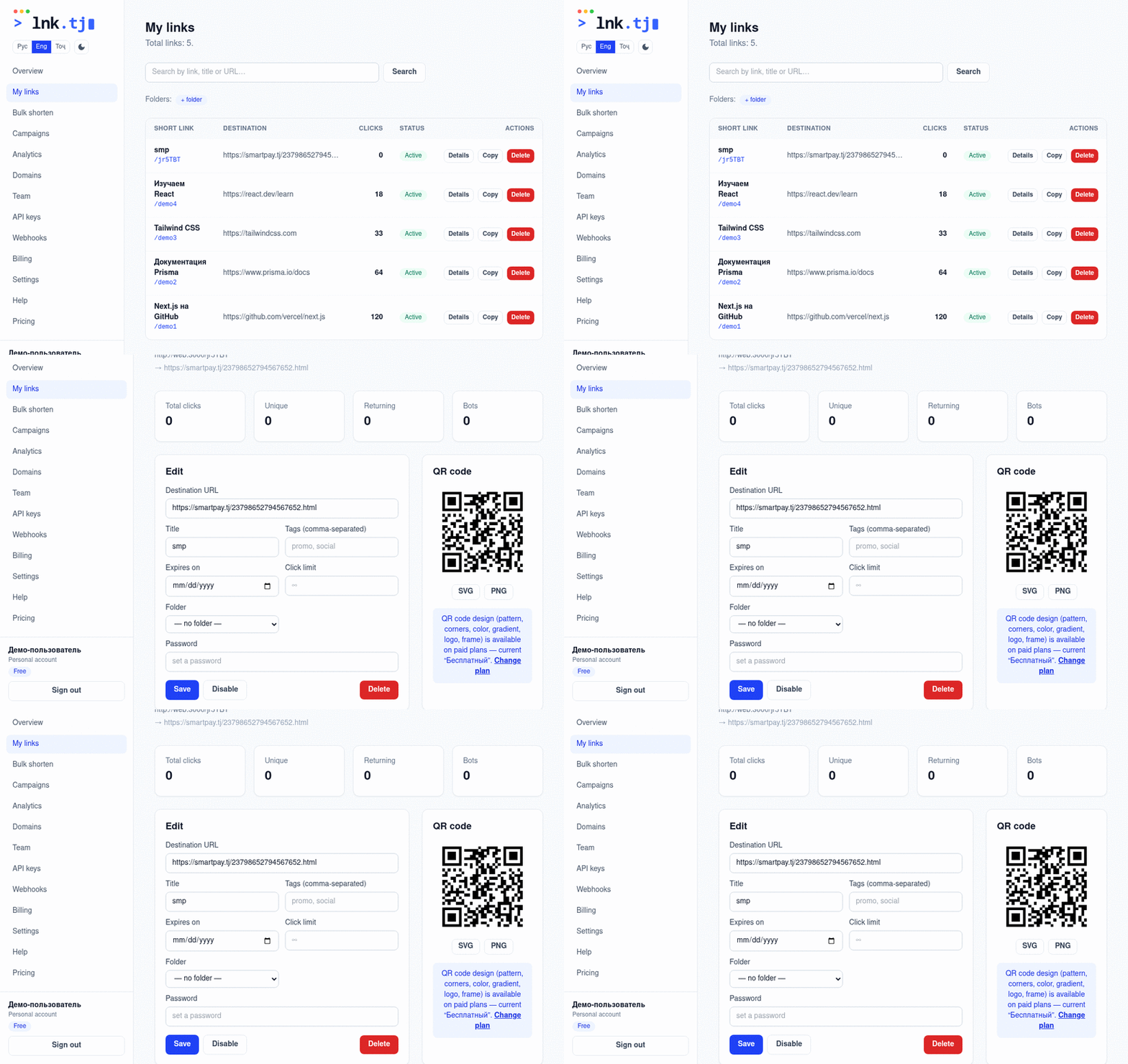
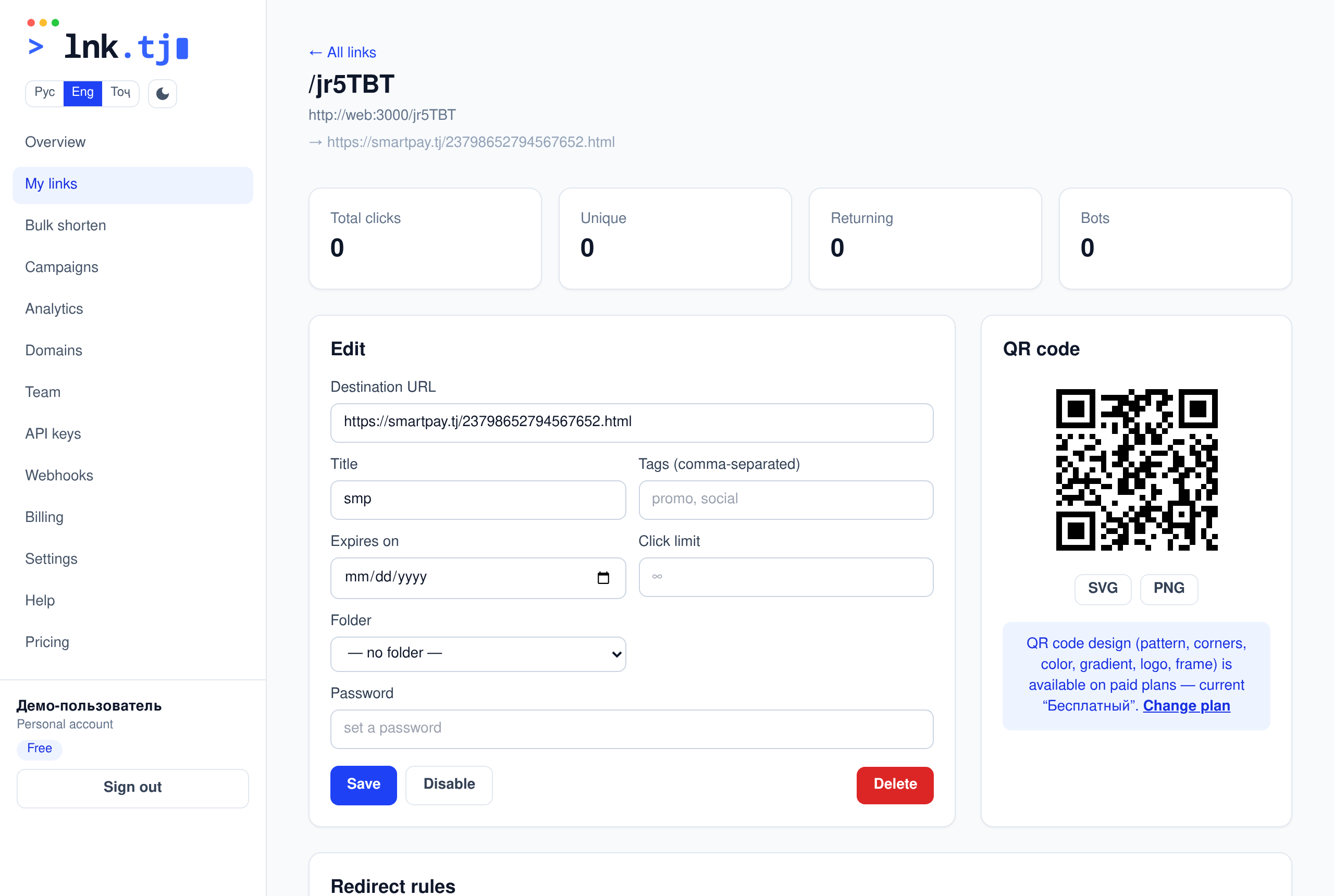
The link page has full analytics, a QR code and an editor for every parameter.
Demo · how it works
Change the destination URL, title, tags, folder, expiry and click limit.
Set or remove a link password.
Style the QR in the designer (pattern, color, logo — see “QR design”) and download SVG/PNG.
View clicks by time, country, device and source.
You can temporarily disable a link with “Disable” without deleting it.
QR code design
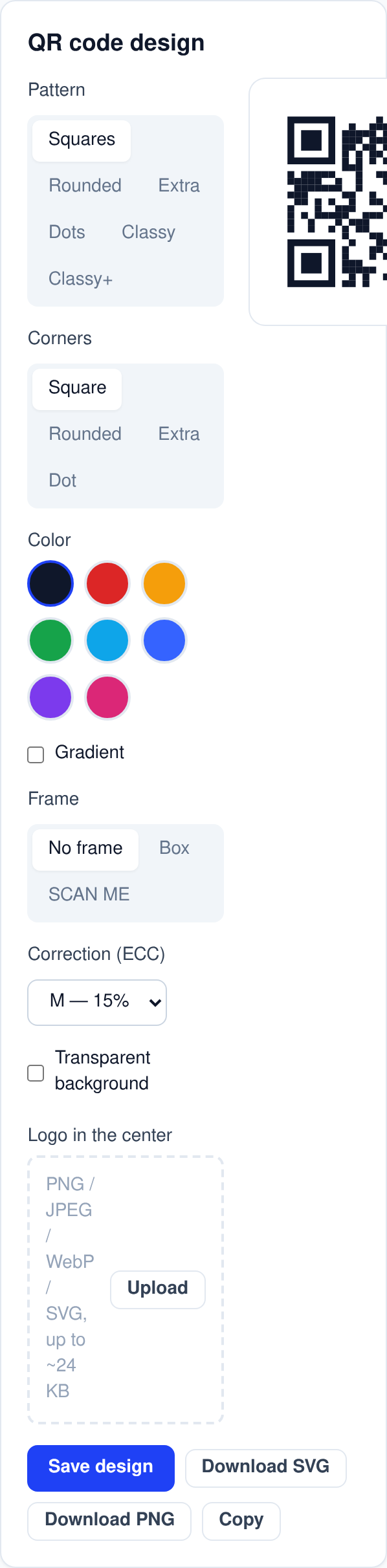
The link page has a QR designer: change the pattern, eye (corner) shape, color or gradient, add a logo, a “SCAN ME” frame and a background — the preview updates instantly and exactly matches the downloaded file.
Download SVG or PNG, or “Copy” — the QR goes to the clipboard.
QR design is on paid plans. Patterns and gradients can affect readability — test the code with a phone before printing.
Link types: link, Wi-Fi, vCard, text
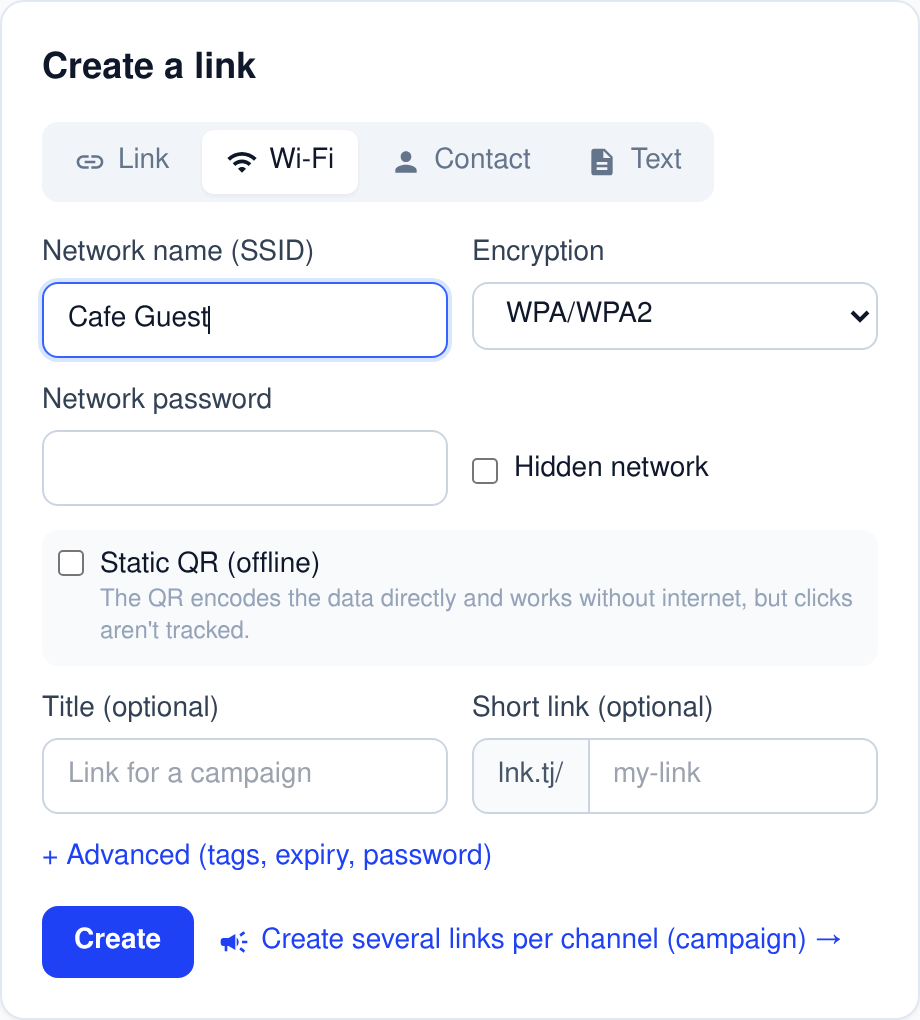
Besides a regular short link you can create a QR for connecting to Wi-Fi, a contact card (vCard) or arbitrary text. Pick the type with the tabs above the form when creating.
This is what a Wi-Fi link's page looks like to a visitor
Connect to Wi-Fi
Point your phone camera to connect
Network (SSID)
Cafe Guest
Password
•••••••••••
Wi-Fi — network name, encryption and password. The opened page shows the details and a QR to connect by camera.
Contact (vCard) — name, phone, email, company, etc. The visitor taps “Save contact” and gets a .vcf file.
Text — any text the recipient sees and can copy.
A dynamic QR (default) goes through our domain — clicks are tracked and the destination can be changed.
A static QR (offline) encodes the data directly — works without internet, but without analytics.
Wi-Fi/vCard/text types are on paid plans. Such links can also be password-protected — the password is asked before the page is shown.
App-download deep link
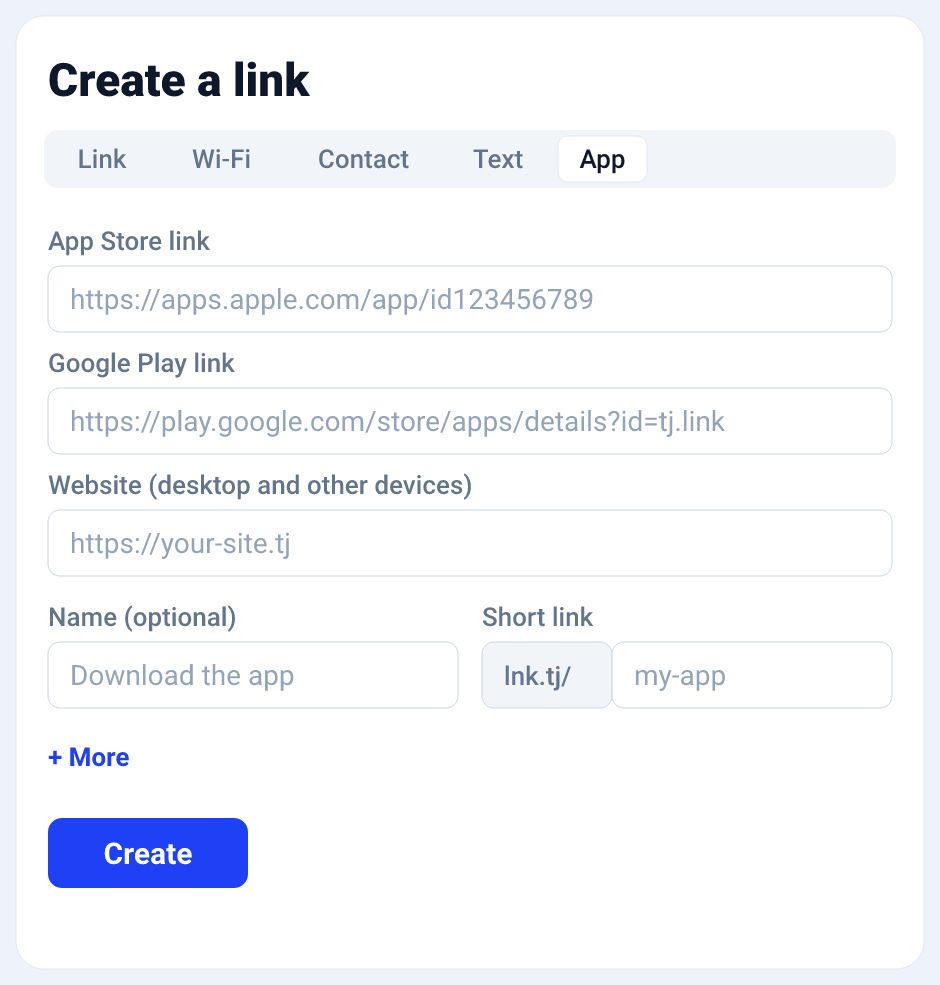
One short link sends everyone to the right store: iPhone → App Store, Android → Google Play, desktop → your website. Great for bio, ads, packaging QR and offline points.
When creating a link, pick the "App" tab.
Paste the App Store link (for iPhone and iPad).
Paste the Google Play link (for Android).
Set a website fallback — where desktop and other devices go (required).
Done: the short link and its QR detect the platform and open the right store.
App deep links are on paid plans. Clicks are tracked like any link — you see where and from which devices people come.
PRO link controls
Each link can have restrictions and protection — at creation (the “Advanced” section) or on the link page.
Expiry — the link stops working after a date.
Click limit — the link closes after N visits.
Password — the visitor sees a password page before redirecting.
Tags and folders — for easy organization.
Bulk shortening
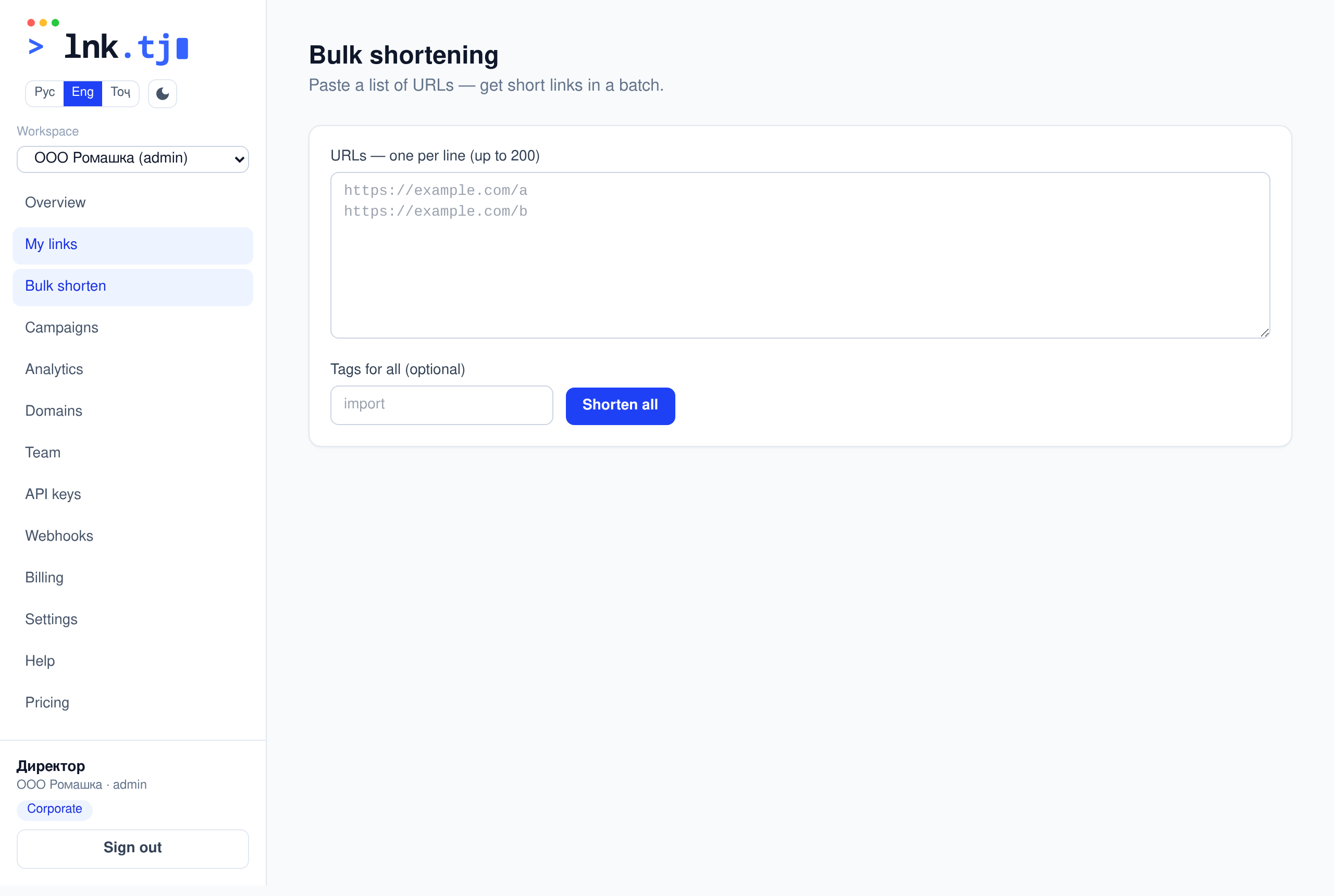
On “Growth” and higher you can shorten a list of links in one go.
Open “Bulk shortening”.
Paste URLs one per line (up to 200).
Optionally set shared tags and click “Shorten all”.
Copy the ready short links with “Copy all”.
Custom domains
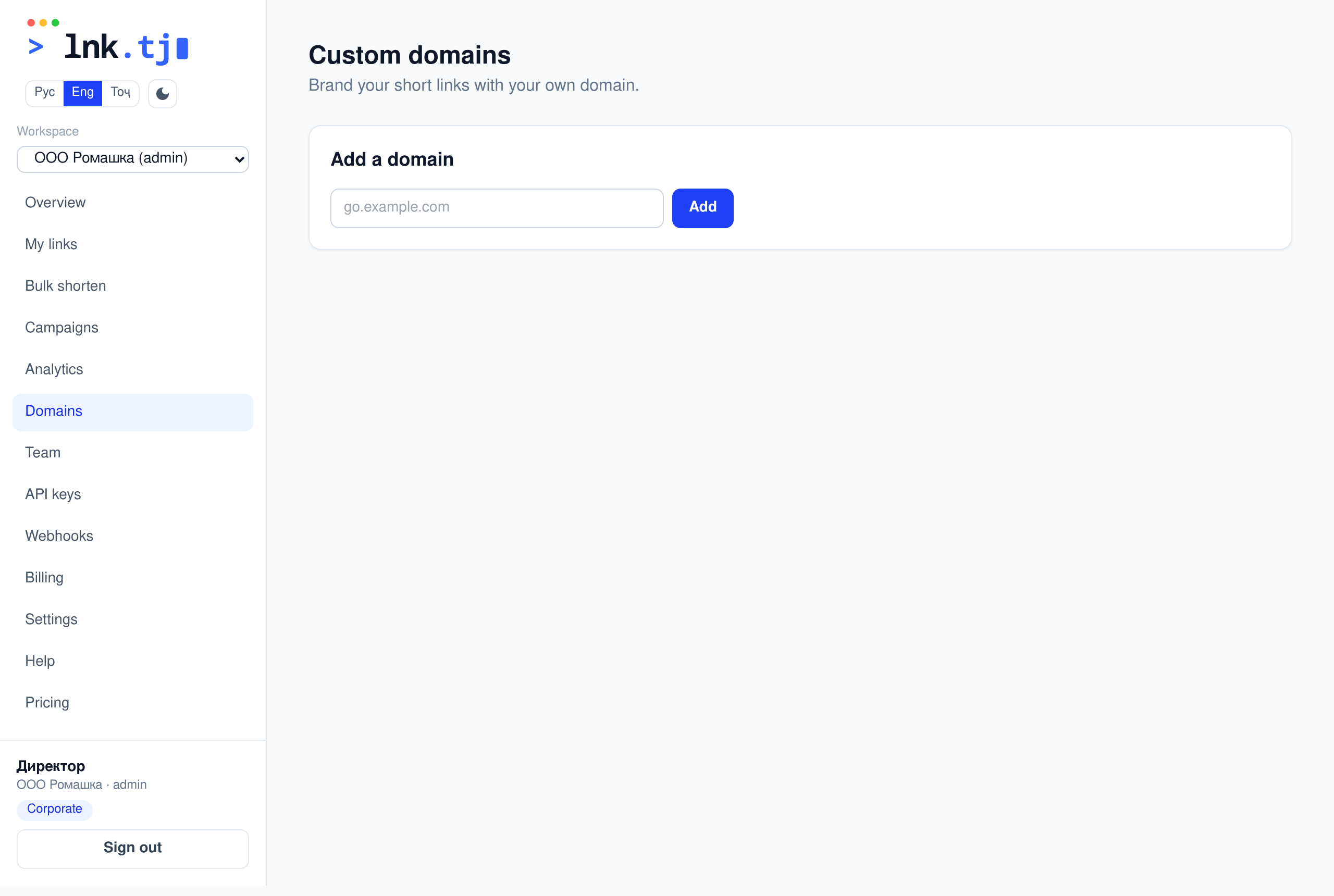
On “Growth” and higher you can brand links with your own domain (e.g. go.company.com).
Open “Domains” and add a domain.
Add the listed DNS records (CNAME and TXT) at your registrar.
Click “Verify” — once confirmed, the domain can be used in links.
Deleting and deleted links
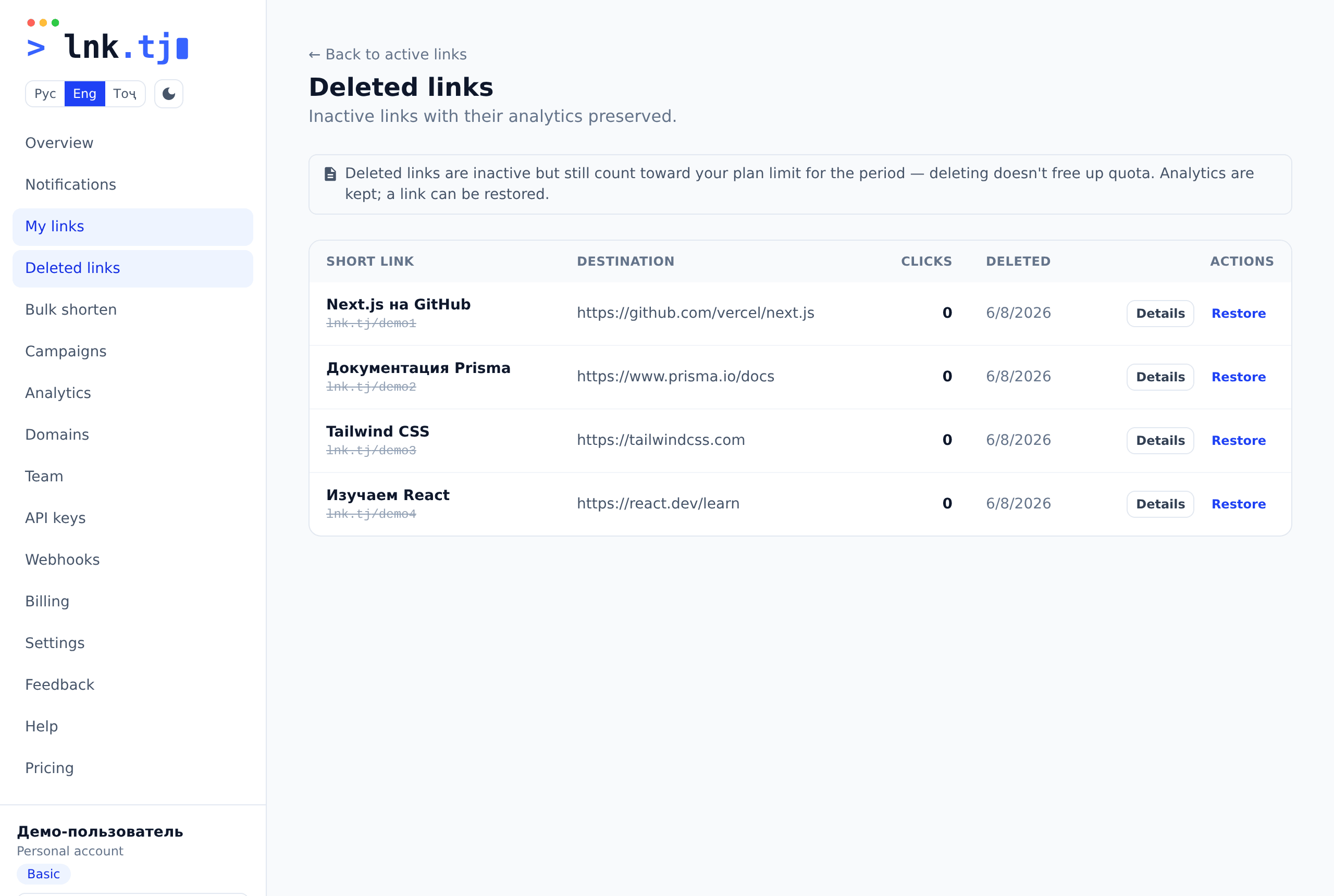
Deleting a link makes it inactive (analytics preserved) rather than erasing it. Deleted links live on a separate page where you can restore them.
A deleted link stops opening — visitors see “link is inactive”.
Its analytics are kept; restore it from the “Deleted links” page.
Note: a deleted link still counts toward your monthly plan limit — deleting doesn't free up quota (prevents dodging the limit).
Open the deleted list via the “Deleted links” link at the top of “My links”.
Analytics
Click analytics
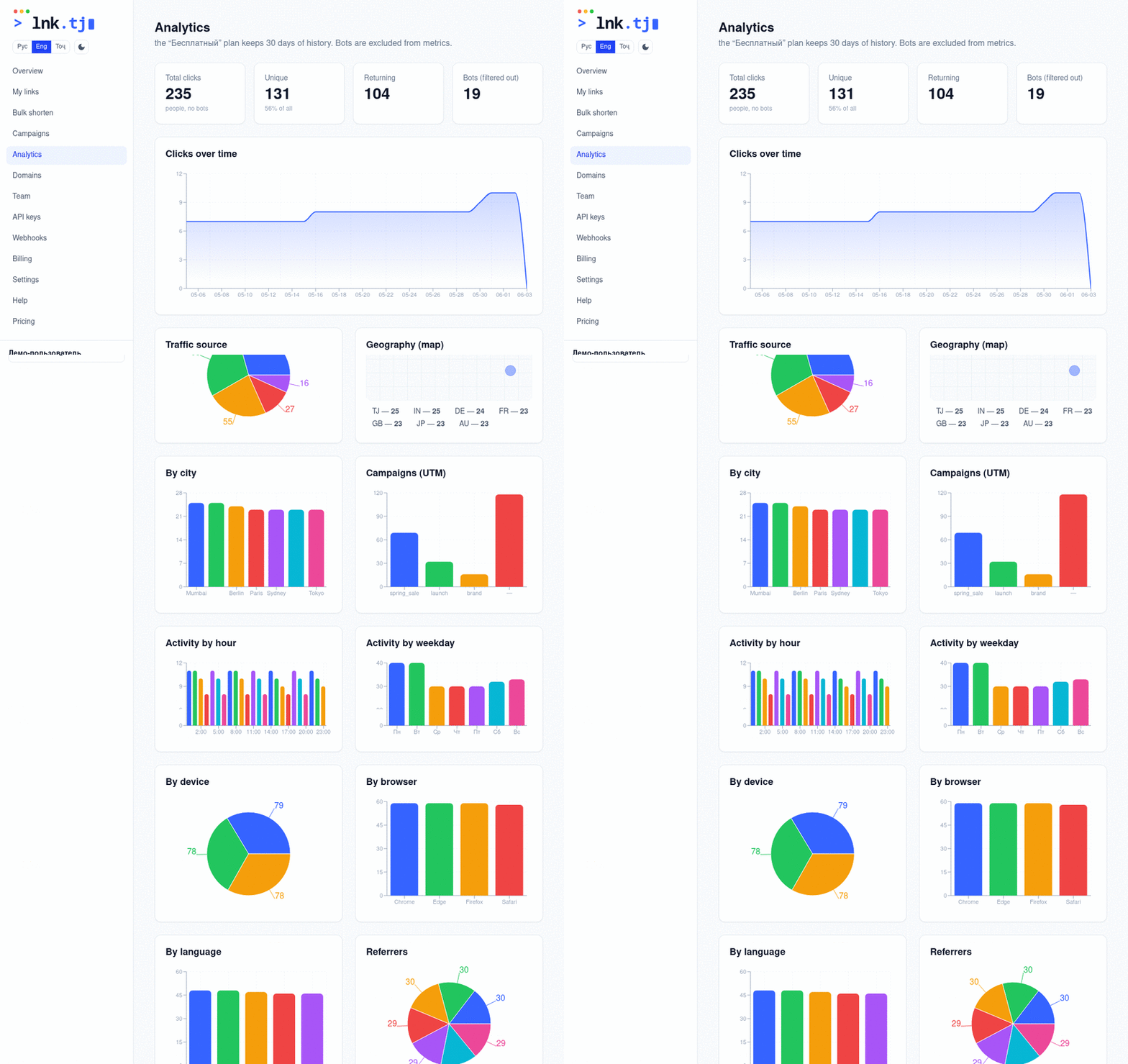
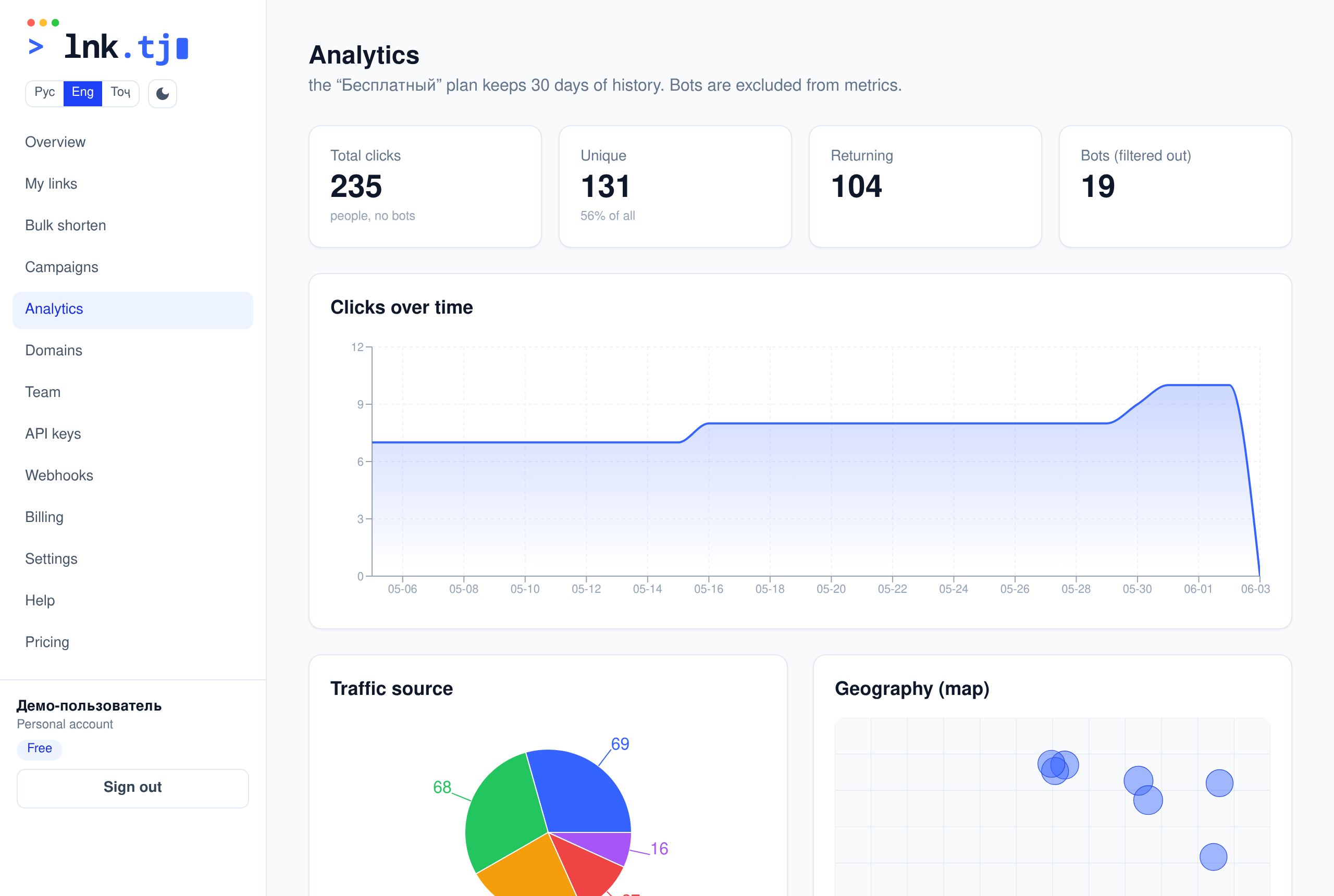
Detailed stats for all your links: unique/repeat clicks, bots filtered out.
Demo · how it works
See click trends, a world map by country and cities.
Analyze traffic sources, the top-10 referring sites, UTM campaigns, devices, browsers and language.
Activity by hour and weekday hints at the best time to post.
History retention depends on your plan (30 days — 3 years).
Team (corporate plan)
Company and employees
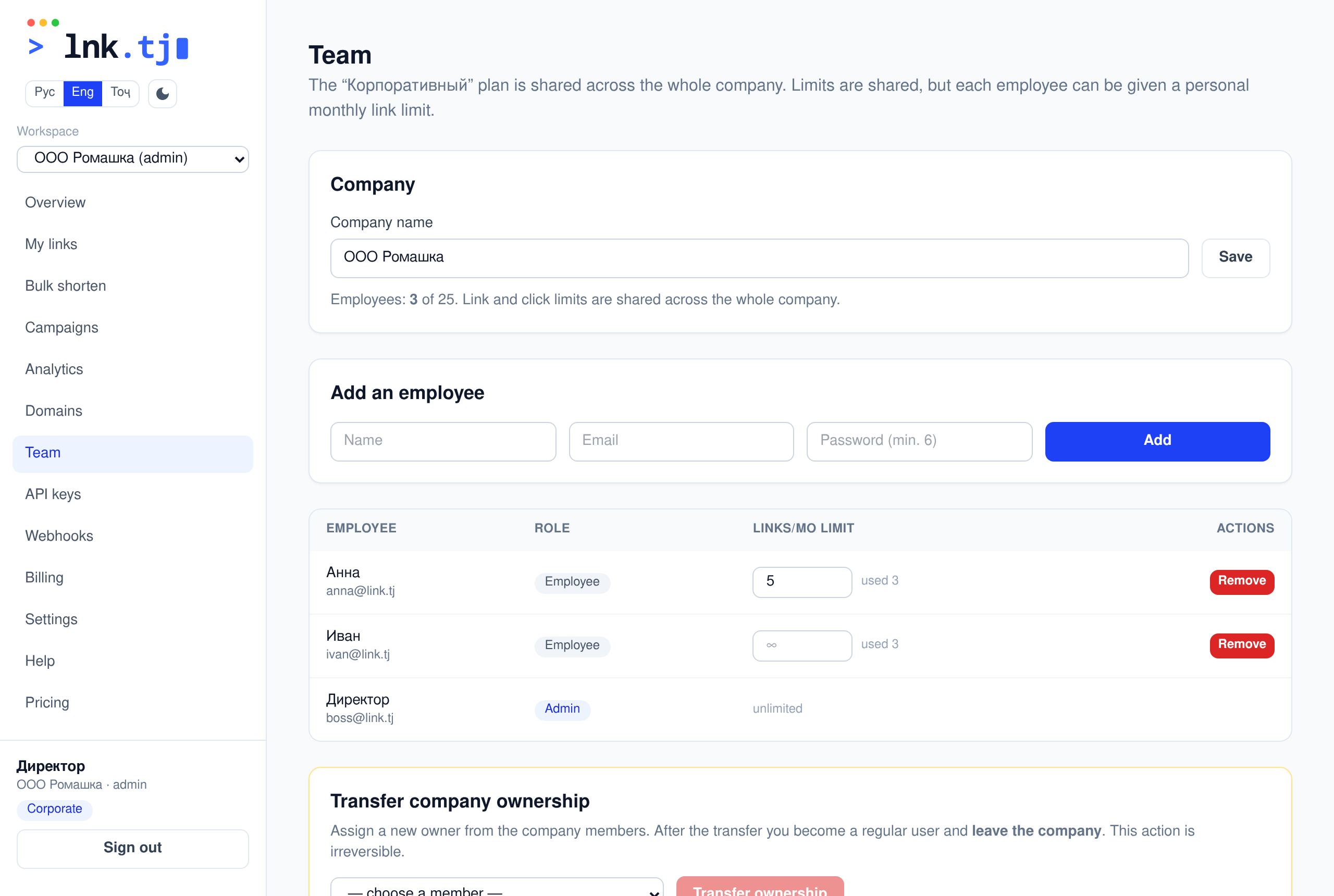
The corporate plan is one subscription for the whole company. The company admin adds employees; limits are shared.
Demo · how it works
Switch to the corporate plan — a company is created and you become its admin.
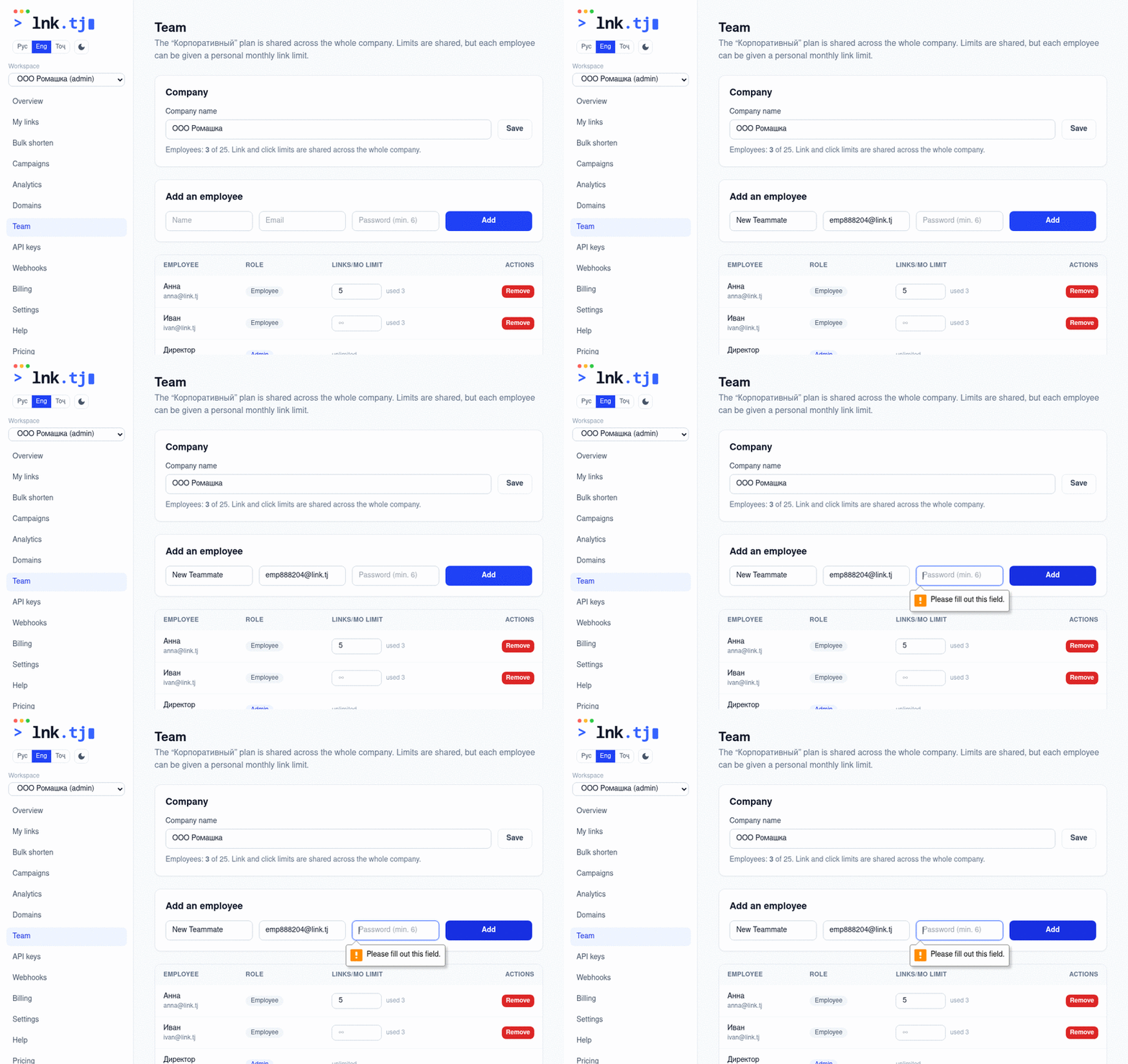
In “Team”, add employees (name, email, password).
Set each a personal monthly link limit if needed.
Switch between your personal account and the company in “Workspace”.
One user can belong to several companies and have a personal account at the same time.
Plans & billing
Plans, promo codes, annual billing
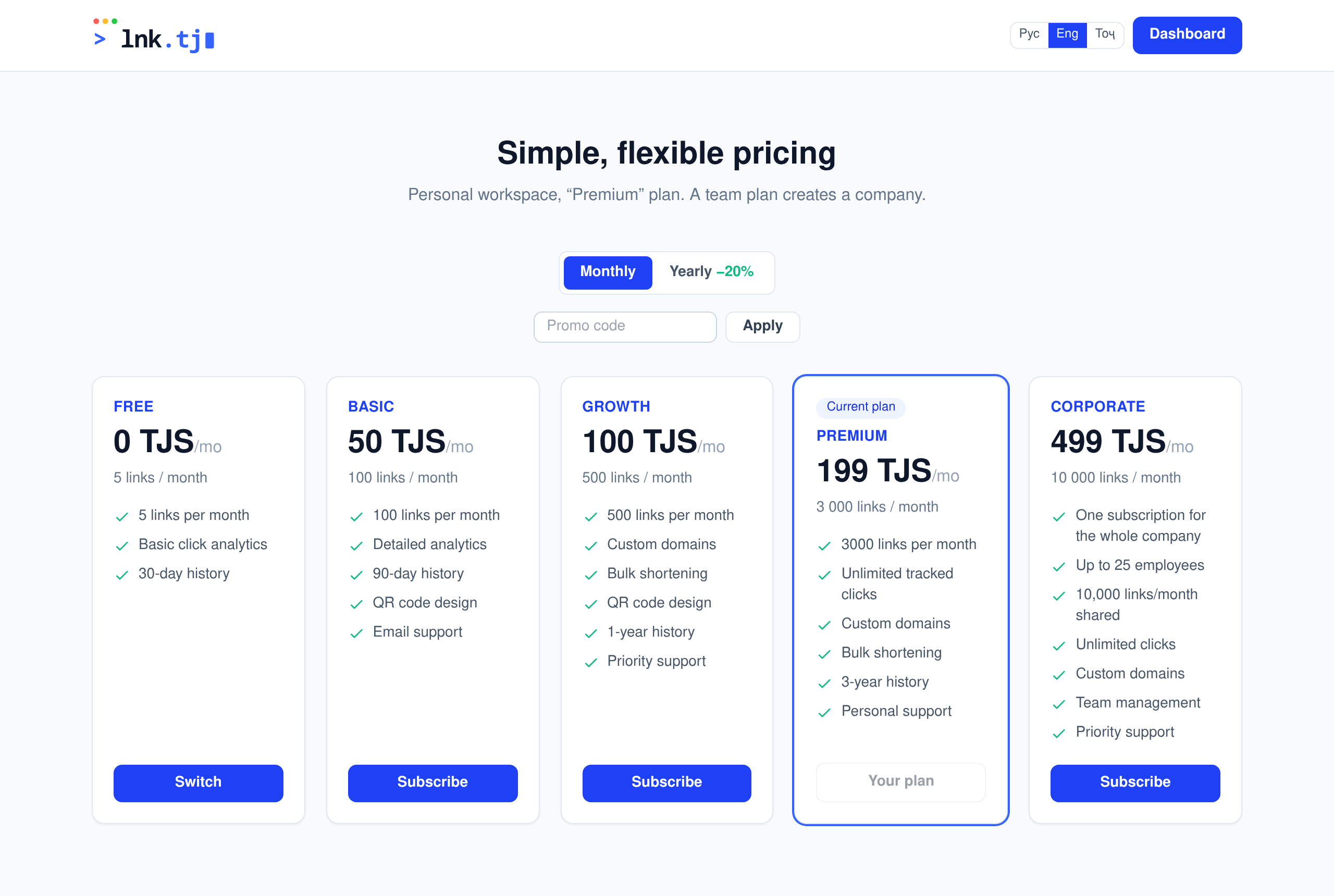
Pick a plan for your link volume. A plan is valid for 30 days from payment (yearly — 365 days); the link limit is metered over this term and resets each new period. Monthly or yearly (−20%). Promo codes are supported; discounts don't stack.
The Free plan gives 5 links once: the counter does not reset monthly — when the limit is used up you must upgrade to a paid plan to create more links.
A paid plan is valid for 30 days from payment — the link limit is tied to this term, not the calendar month, and resets each new period.
Open “Pricing”, toggle “Month/Year” and optionally enter a promo code (“Apply”).
Choose a plan — SmartPay checkout opens (Tajikistan banks and e-wallets).
After payment the plan activates automatically — no card is stored.
On upgrade, the remaining term and unused links of the previous plan are kept: they stay available until the previous period ends, while the new plan grants its own limit for a fresh 30 days (two parallel packages). This applies to all plans. A promo code and the yearly −20% don't stack; renewal extends your current term (renew within 7 days of expiry).
Paying by Visa / Mastercard
Plan payments go through SmartPay, Tajikistan's payment system. Visa and Mastercard are accepted, along with Tajik banks and wallets. Card details are entered on SmartPay's secure page — link.tj never sees or stores them.
Pick a plan and click Subscribe — the SmartPay payment page opens.
Choose card payment and enter your Visa or Mastercard details on the SmartPay page.
The invoice is always issued in somoni (TJS). If the price is shown to you in dollars, the equivalent amount in somoni is charged.
The amount shown in dollars is converted to somoni for the invoice; the debit from your card account happens in dollars, at your bank's rate.
Once payment succeeds, your plan activates automatically.
The somoni → dollar rate is set by your card's issuing bank, not by link.tj, so the final dollar amount may differ slightly from the displayed price.
Billing and invoices
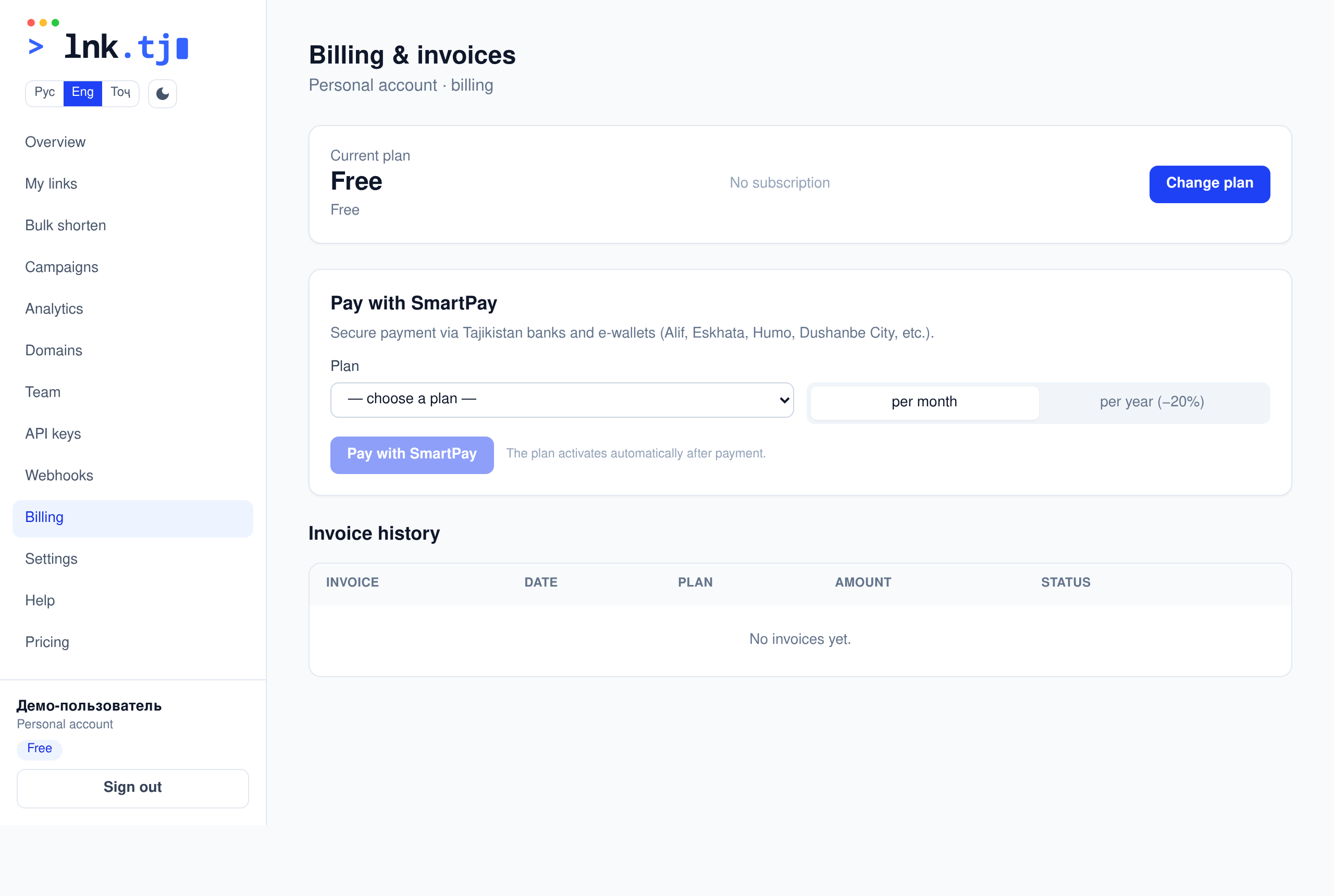
“Billing” shows the current subscription, the end of the paid period and invoice history. Payment goes through SmartPay; no card is stored.
Pay or change plan via SmartPay right from the section.
Enter a promo code before paying to get a discount.
Download invoices or export history to CSV.
“Cancel renewal” keeps access until the end of the paid period, then the plan reverts to “Free”.
Employees aren't asked to pay — the company admin pays.
API & integrations
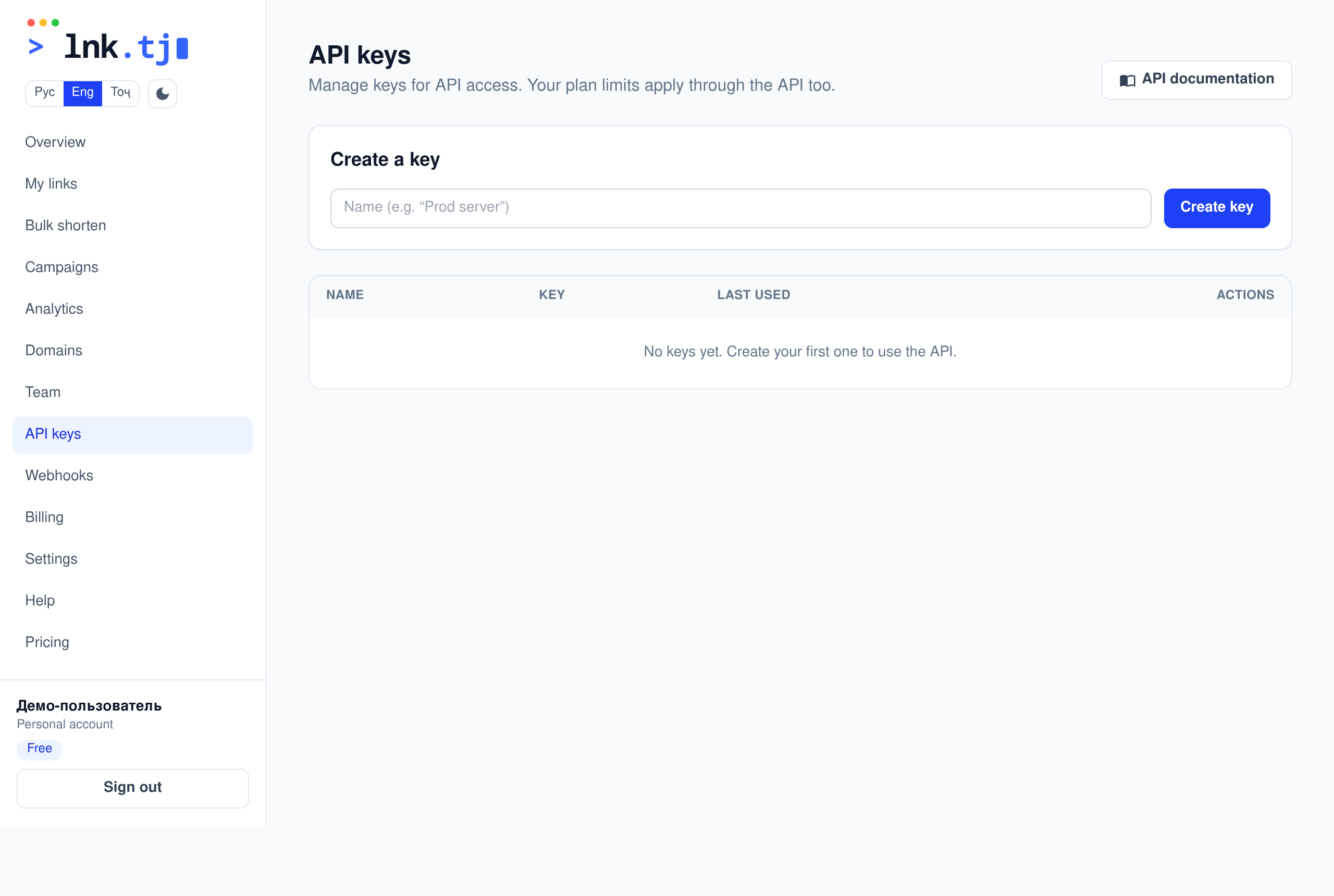
API keys and documentation
Manage short links programmatically. Create a key and use the REST API.
In “API keys”, create a key (shown once — copy it).
Send it in the header Authorization: Bearer <key>.
Create plain links or types (kind=wifi/vcard/text + payload) — types need a paid plan.
Full endpoint reference and examples are on the “API documentation” page.
Account security
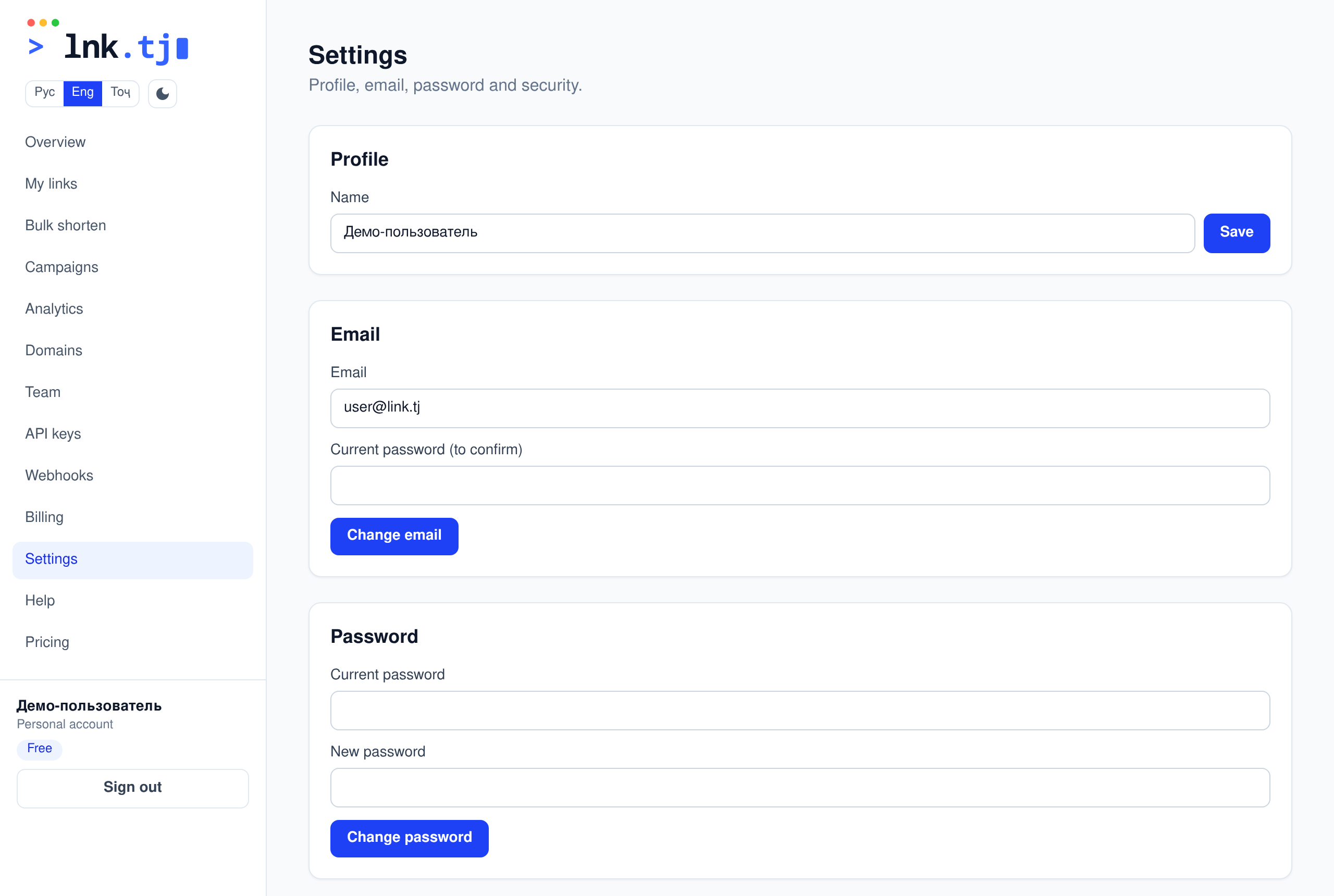
Profile, password and 2FA
“Settings” — change your name, email, password, two-factor authentication and sign out everywhere.
Change name/email/password (email and password need your current password). A new email is confirmed via a link sent to it.
Enable 2FA: scan the QR in an authenticator app and confirm with a code.
To disable 2FA, confirm with your current password and an authenticator code.
“Sign out everywhere” ends all other sessions (handy after a password change or a lost device).
Report a link
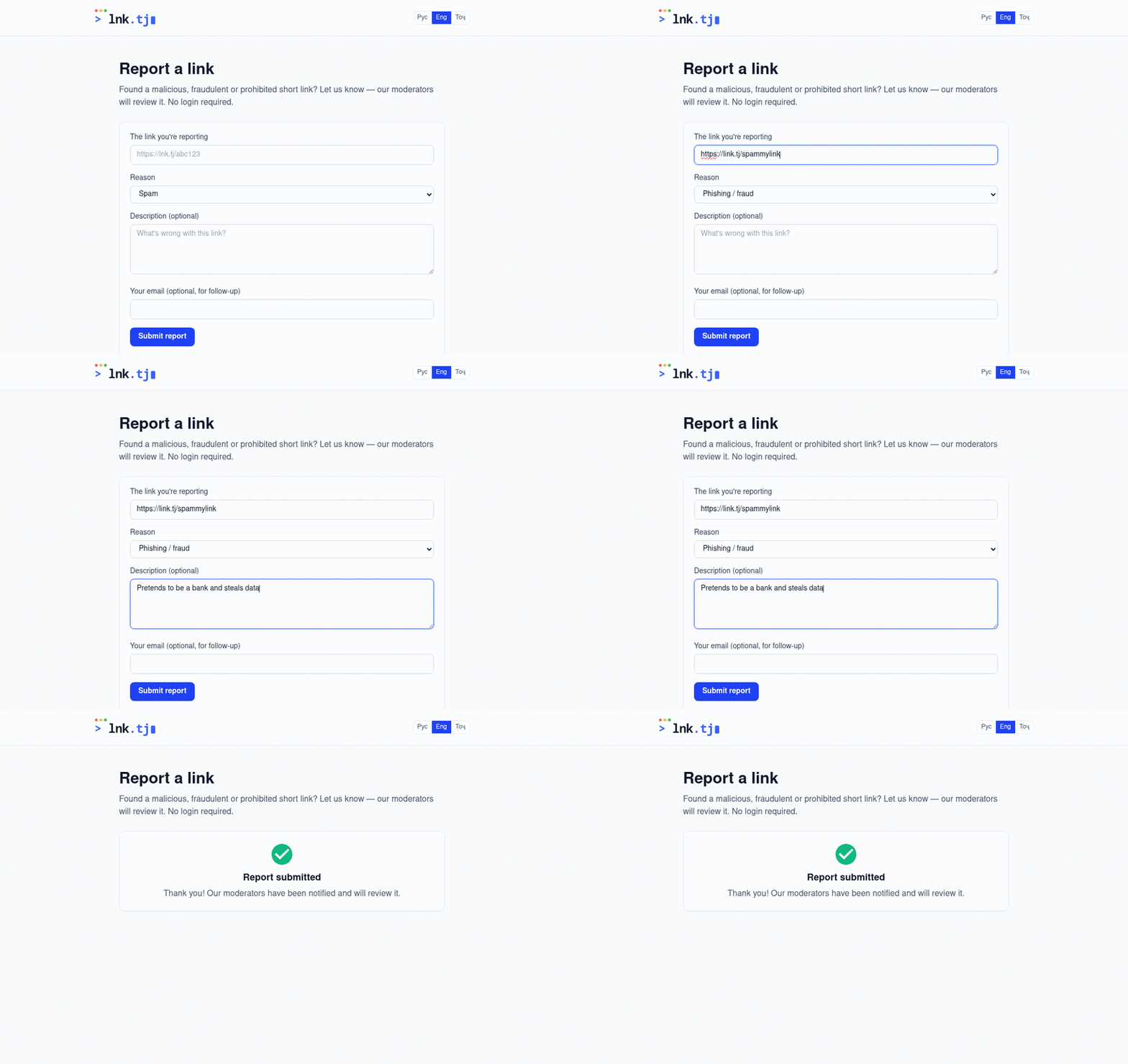
Anyone can report a malicious or fraudulent short link — without signing in.
Demo · how it works
Open /report (the link is in the site footer).
Paste the link, pick a reason and describe the problem.
Submit — moderators are notified and review the report.
Feedback
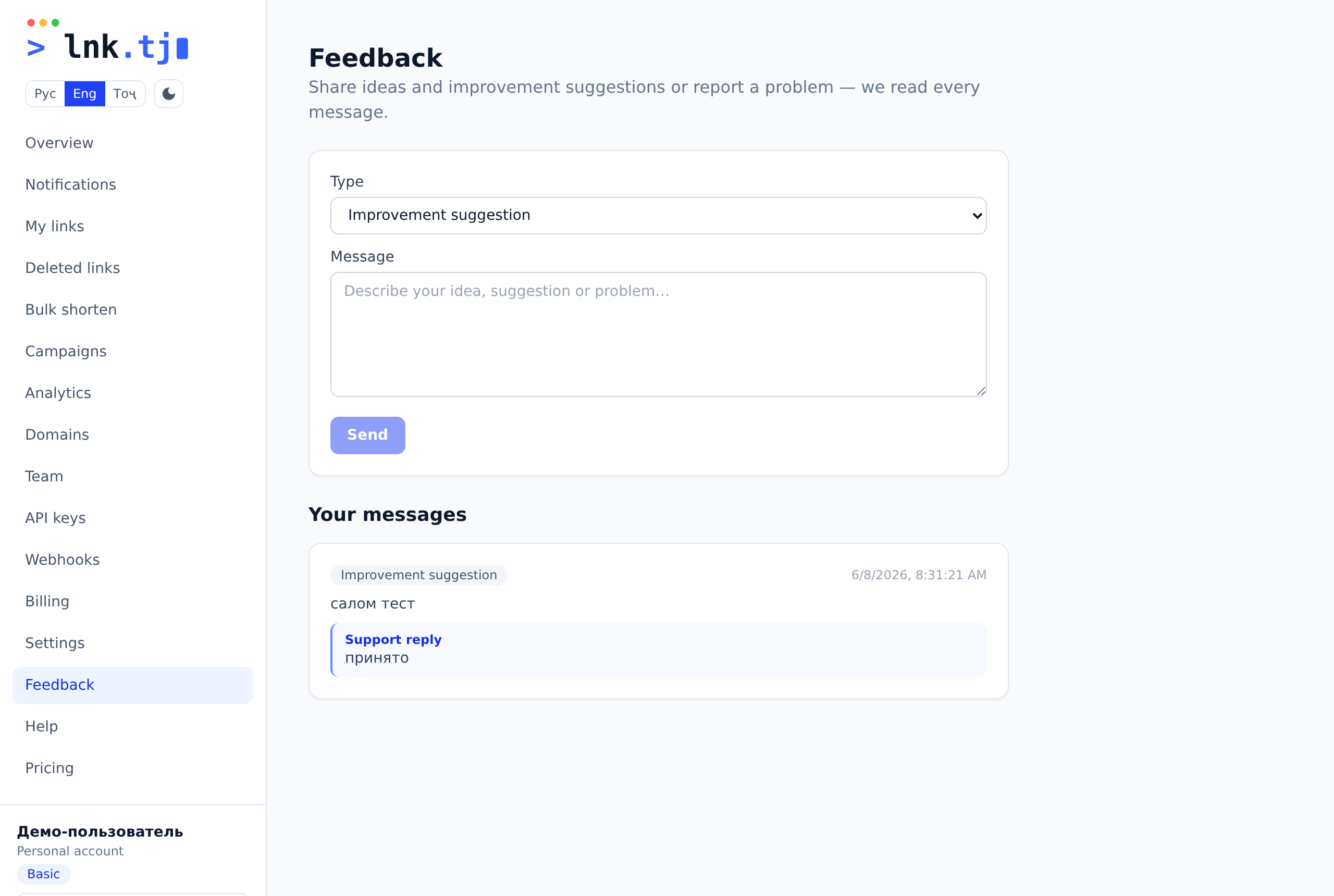
The “Feedback” section in your dashboard — send an idea, an improvement suggestion or report a problem. We read every message and reply right in your dashboard.
Open “Feedback” in the dashboard menu.
Pick a type: improvement suggestion, problem or other.
Describe your message and click “Send”.
The support reply appears here, next to your message.
Administration (superadmin)
Platform dashboardsuperadmin
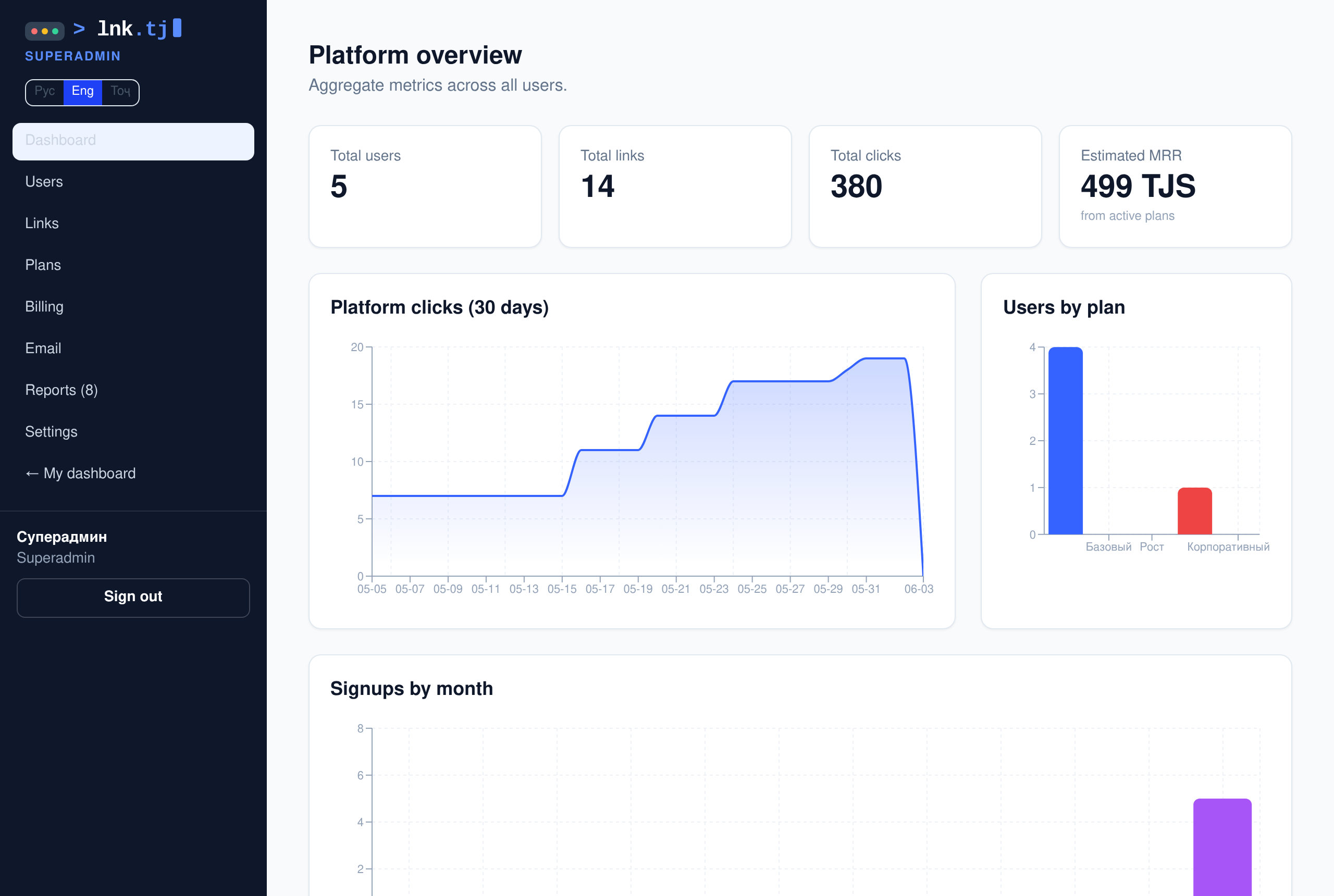
The superadmin sees a summary: users, links, clicks, revenue (MRR), signups by month.
Project analyticssuperadmin
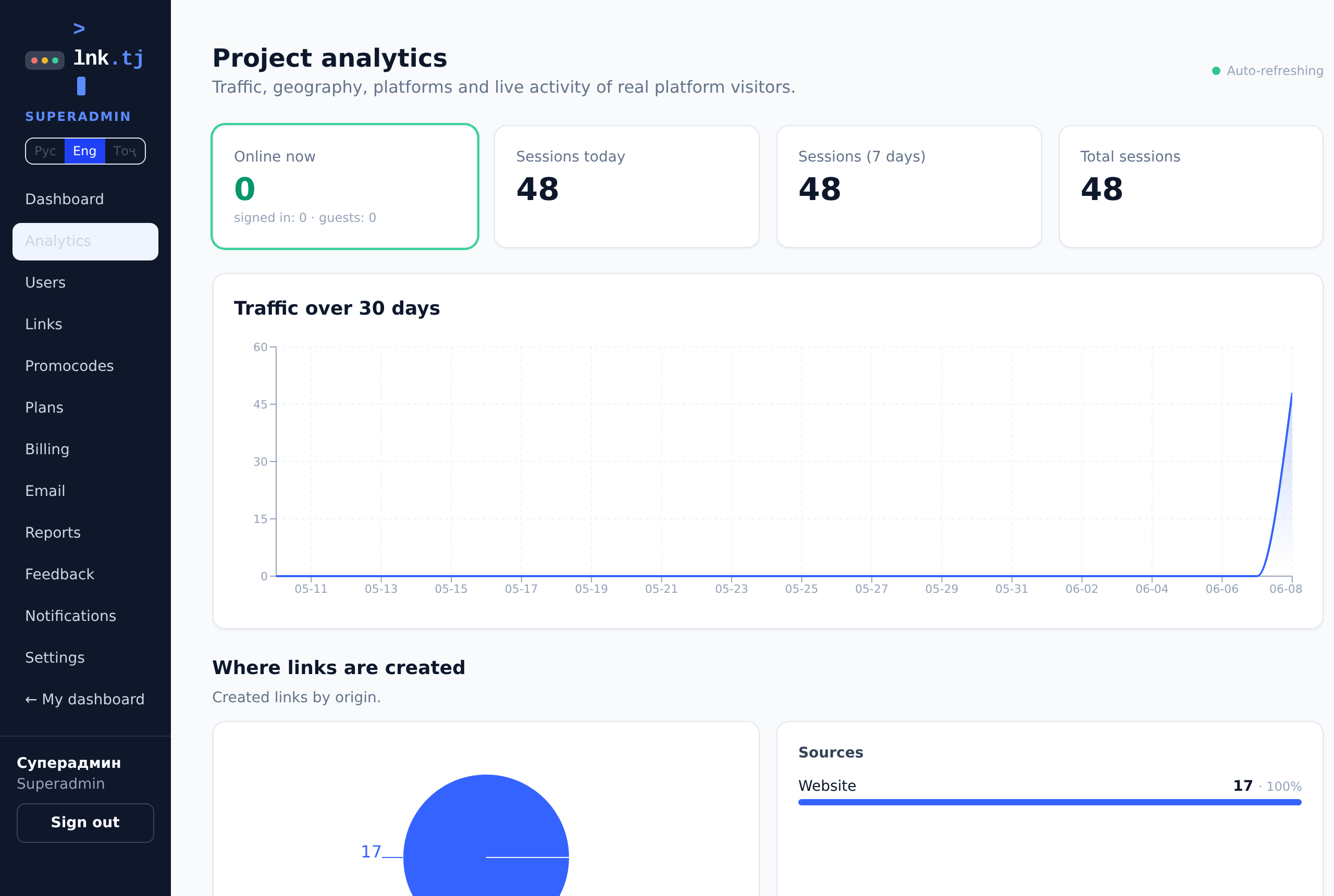
Analytics of real platform visitors (from live heartbeat sessions): online counters, geography, platforms and traffic sources. Short-link clicks are shown on each link's detail page, not here.
“Online now”, “Sessions today / 7 days / total” are real counters via heartbeat pings; the page auto-refreshes.
Live sessions feed: time (Dushanbe), user/guest, country and city, device, OS, arrival source, IP and page.
Geography — a world map + countries and cities; platforms (devices), OS, browsers; “Traffic sources” — top-10 platforms visitors arrive from.
“Where links are created”: website, Telegram bot, mobile app, API.
Users and companiessuperadmin
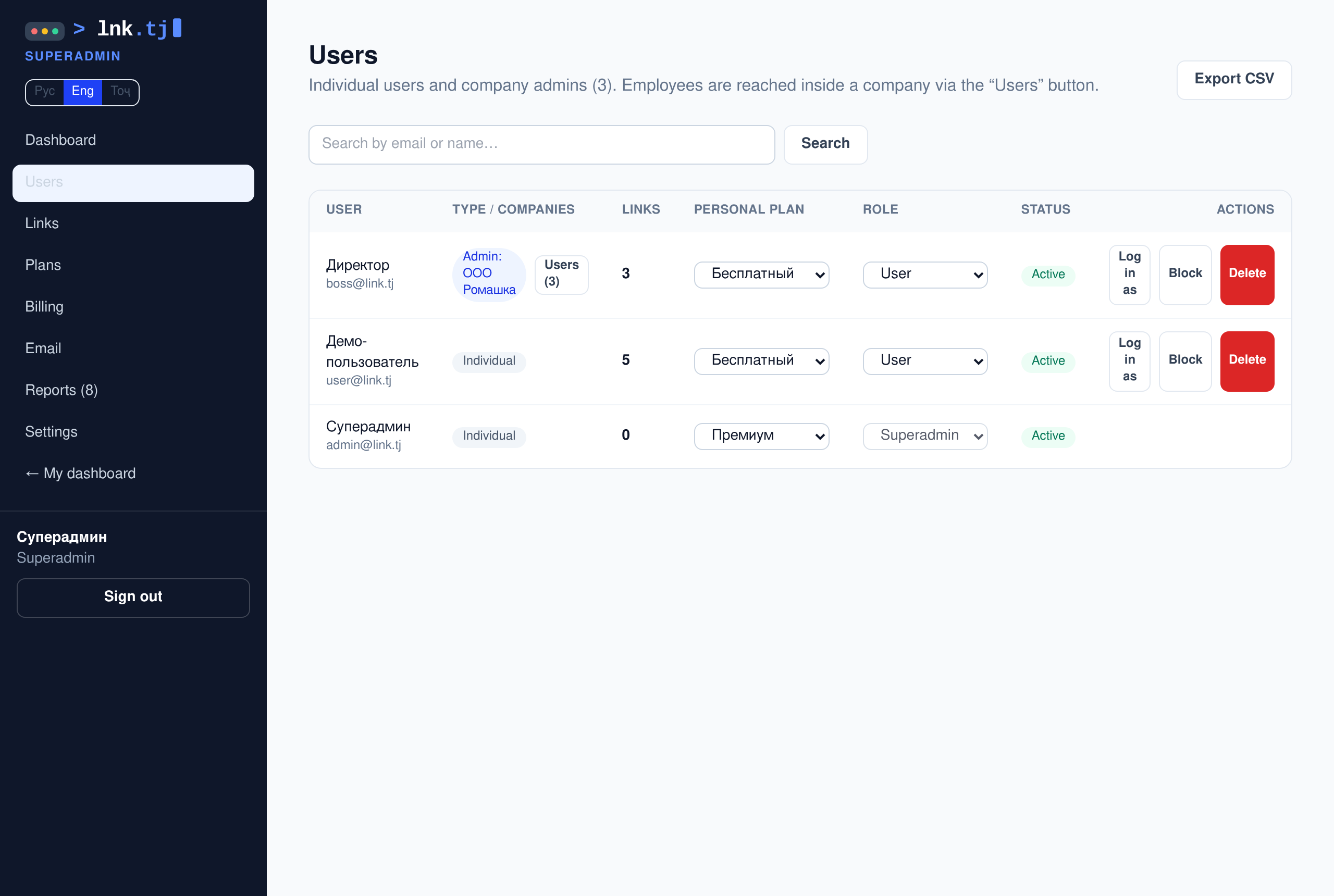
A list of individual users and company admins. Search, pagination, CSV export.
Change personal plan, role, block or delete users.
“Users (N)” opens a company's members.
“Log in as” lets you enter a user's account and return.
Link moderationsuperadmin
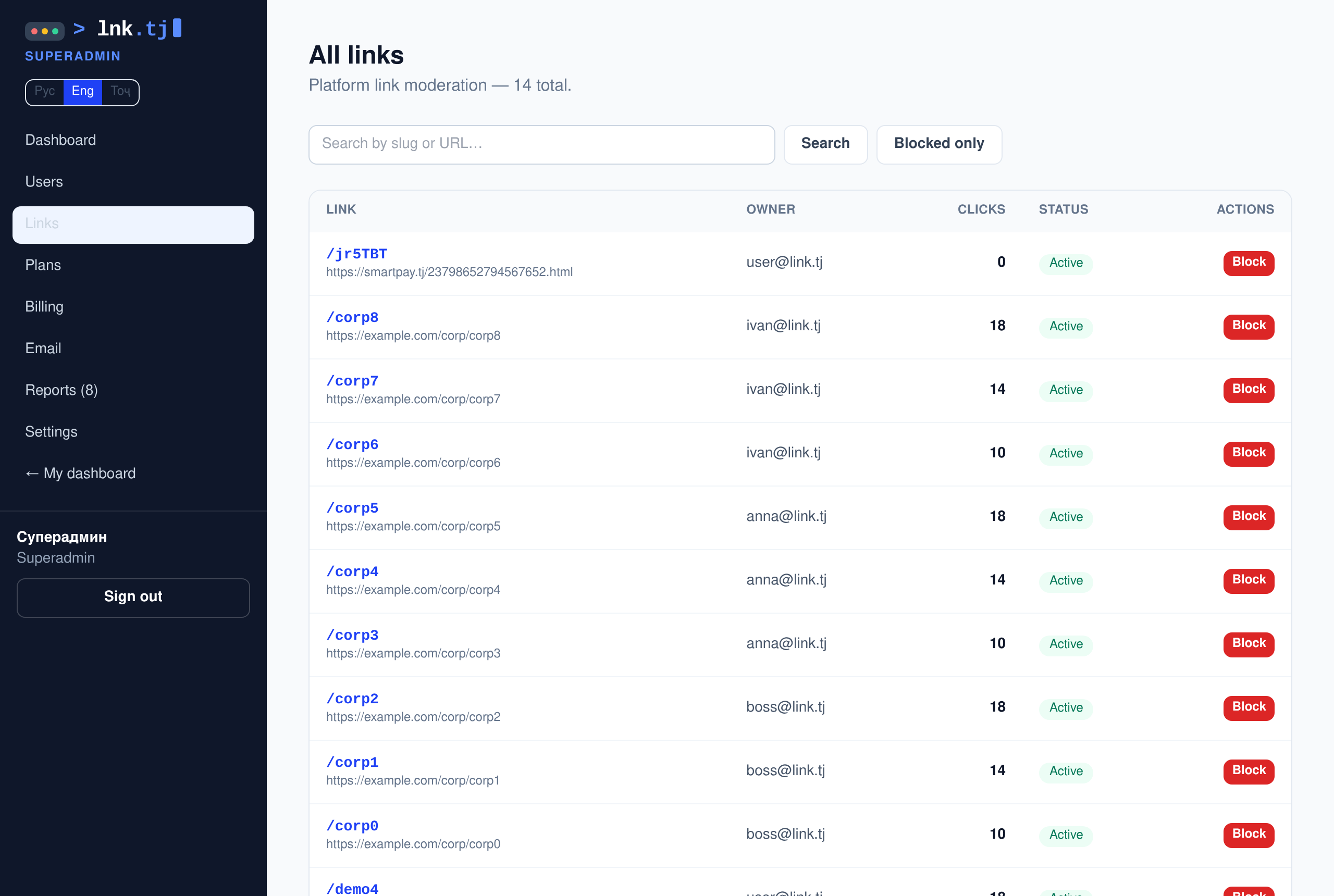
All platform links with search and pagination. Block spam/malicious links.
Find a link by slug or URL.
Click “Block” — redirects through it are stopped.
All actions are written to the log (the “Settings” section).
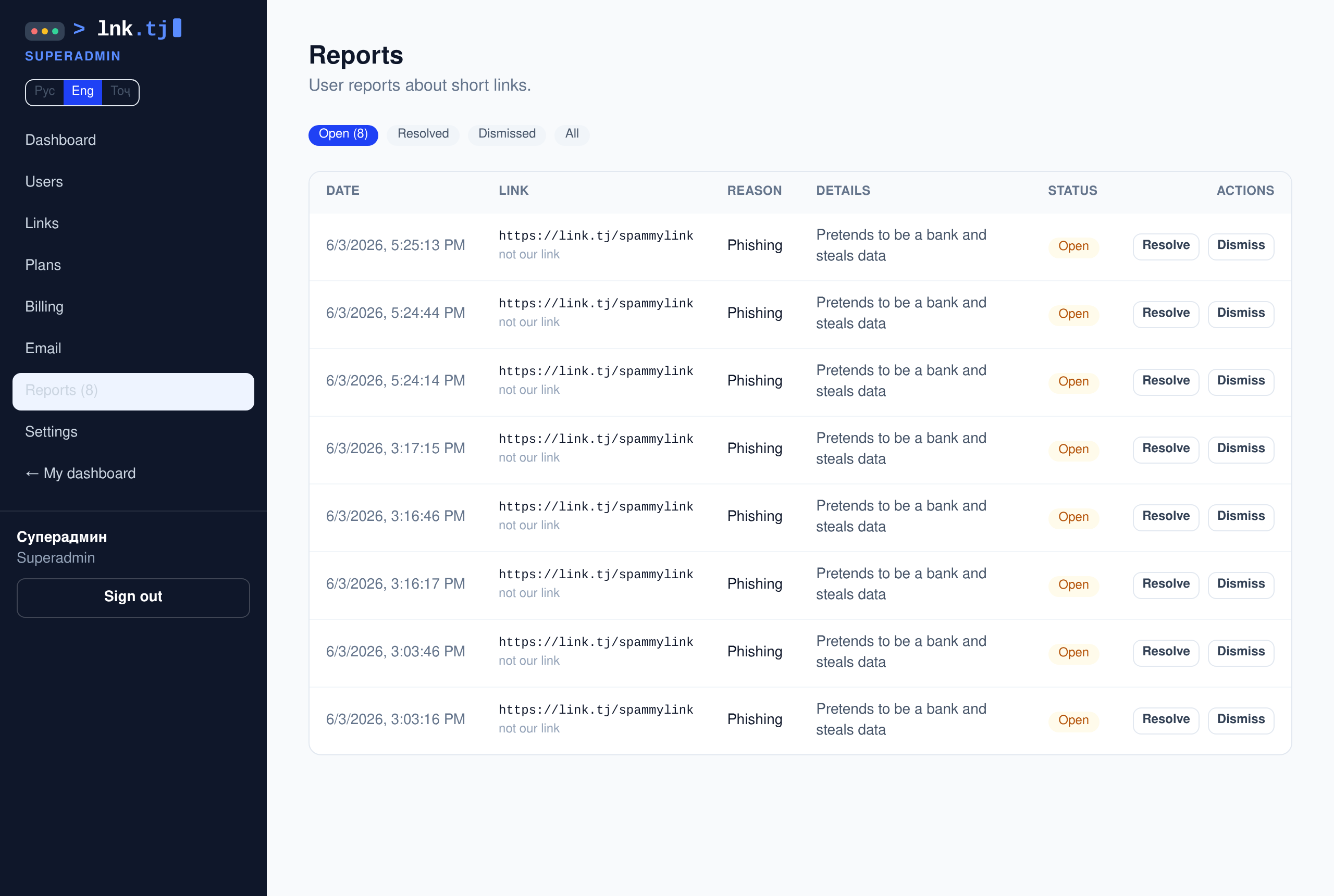
Reportssuperadmin
User reports about links. A badge in the menu shows the number of open reports.
Open a report, review the reason and description.
“Block” closes the link and resolves the report; “Resolved”/“Dismiss” — without blocking.
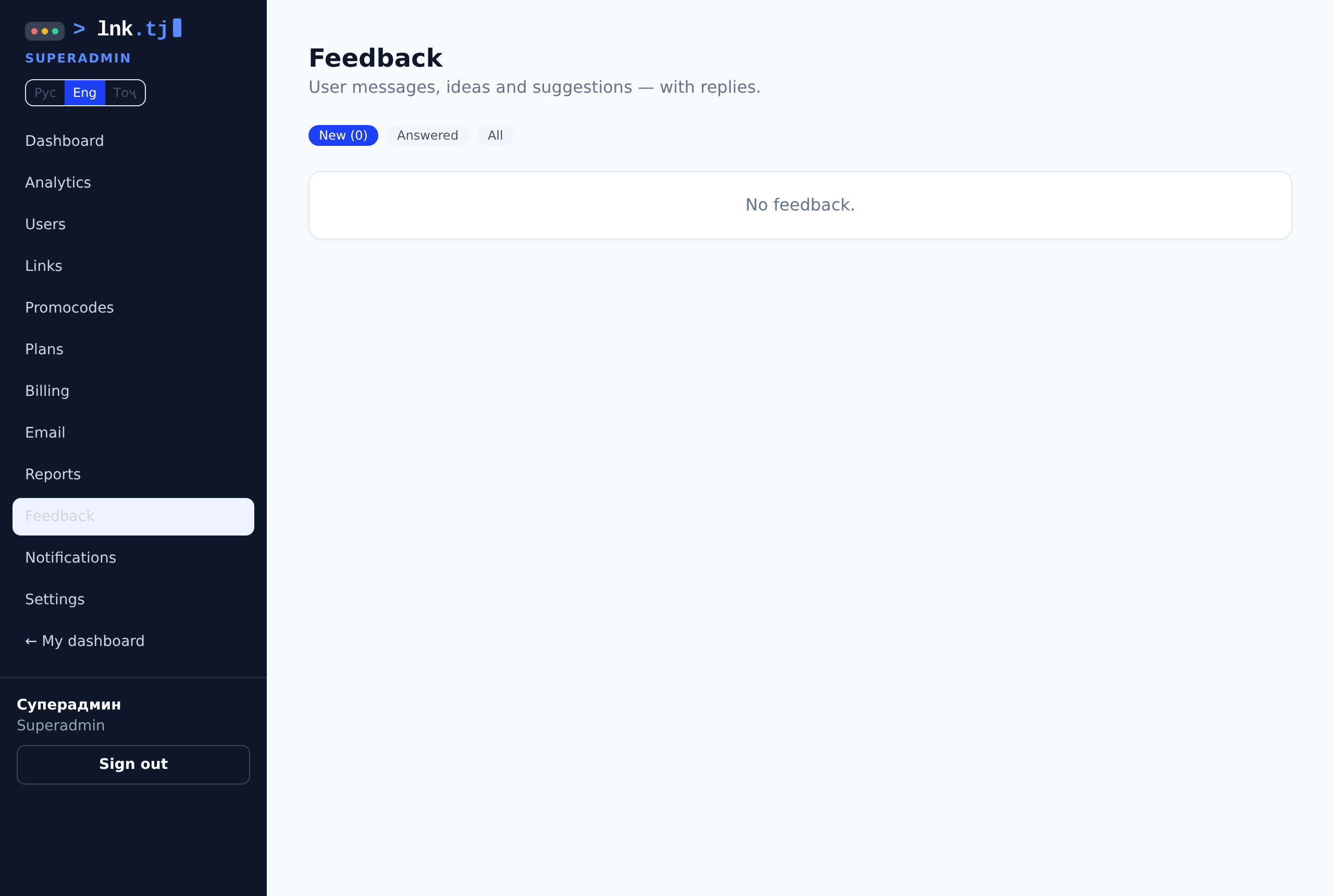
Feedbacksuperadmin
User messages — ideas, suggestions and problem reports, with the author's login. A badge in the menu shows the number of new messages.
Open a message — the user's login (email), type and text are shown.
Write a reply and click “Reply” — the user sees it in their dashboard.
The New/Answered/All tabs filter the list; a message can be deleted.
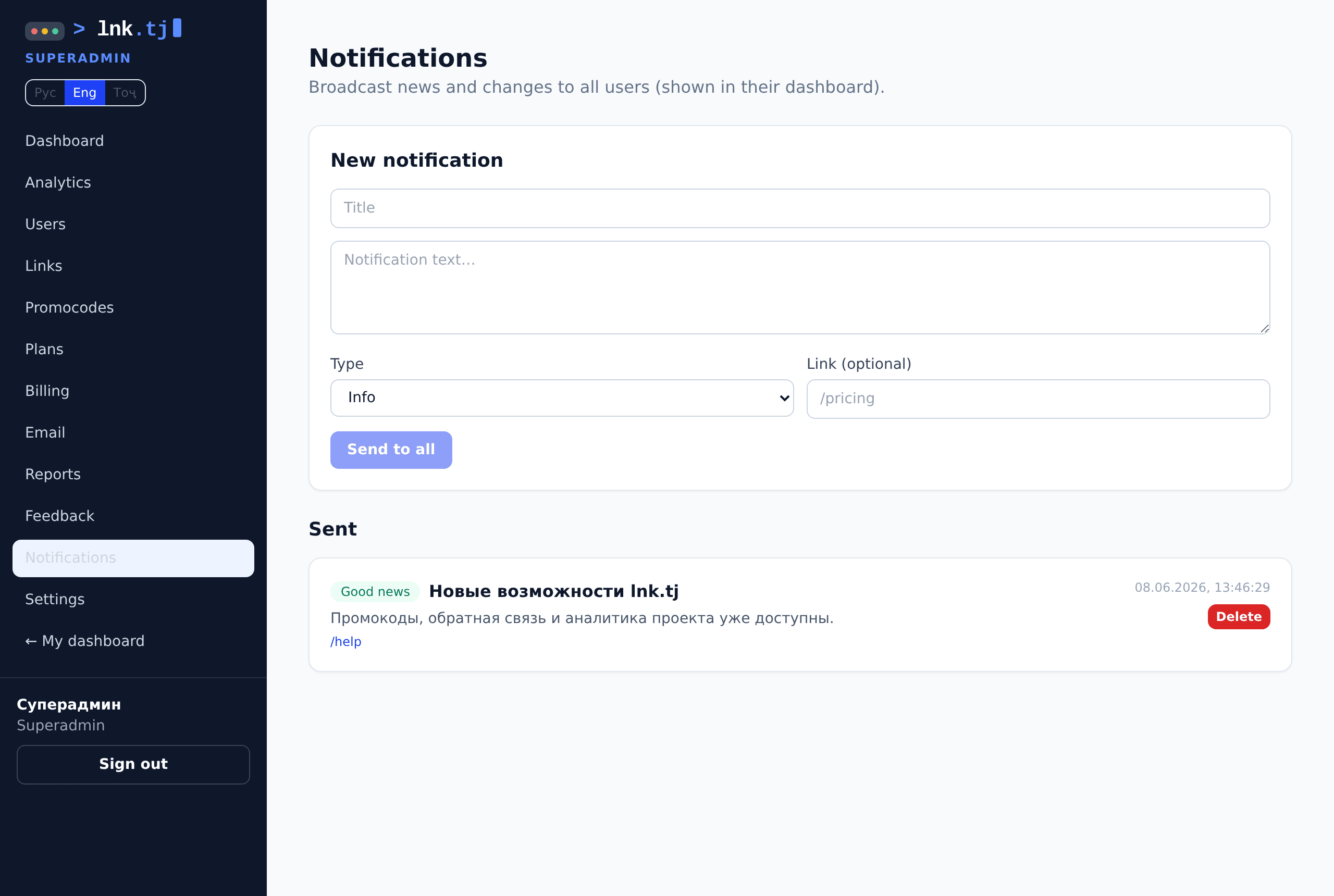
Notifications (broadcast)superadmin
Broadcast news and changes to all users — they see them in the “Notifications” section of their dashboard.
Set a title, text, type (info/important/good) and an optional link.
Click “Send to all” — the notification appears for every user.
Sent notifications can be deleted from the list.
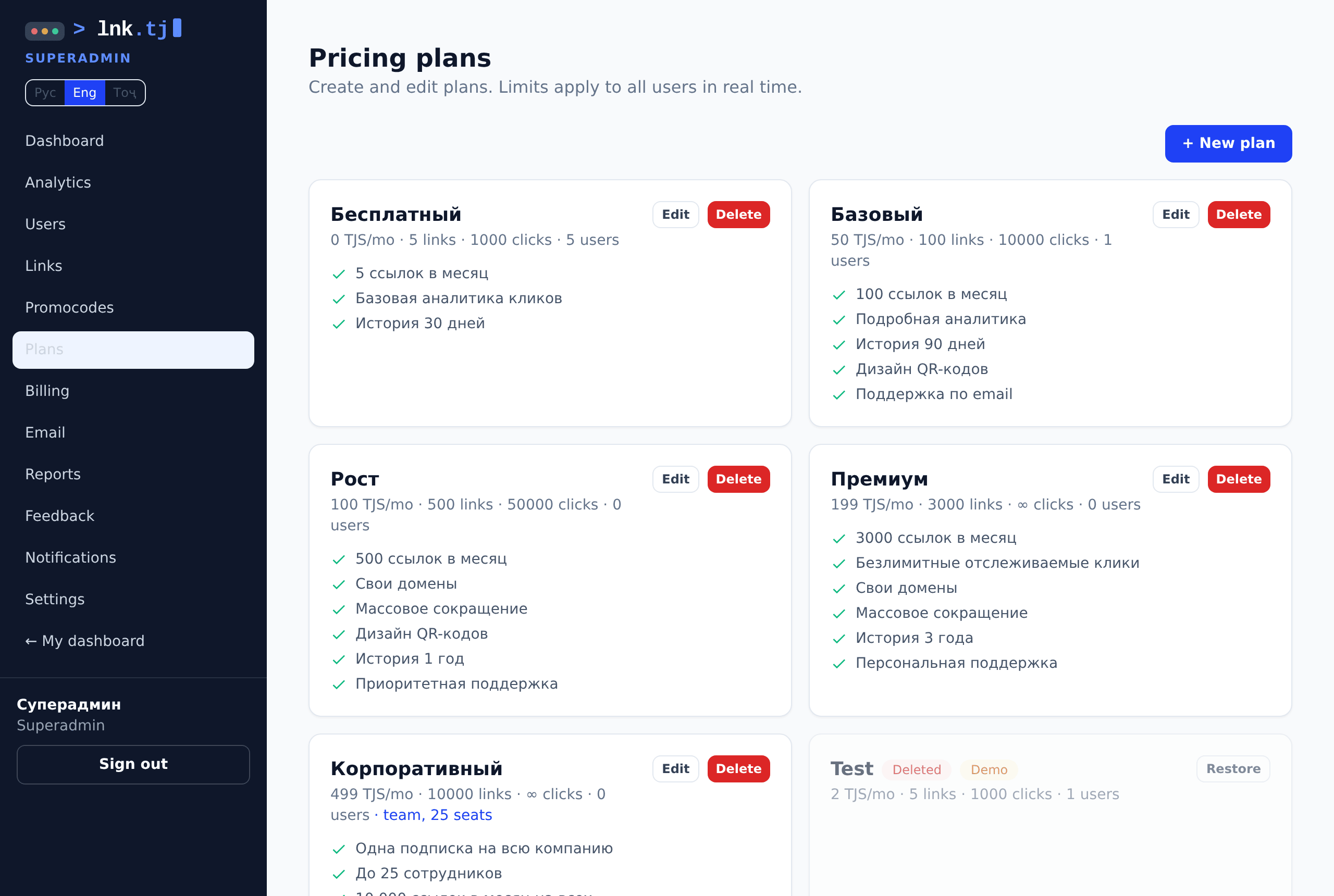
Planssuperadmin
Create and edit plans: prices, limits, features and localized names. Deletion is soft.
Create or edit a plan; “Demo only” hides it from customers.
“Delete” hides the plan from customers but keeps history — active subscriptions keep working.
A deleted plan can be restored.
Promocodessuperadmin
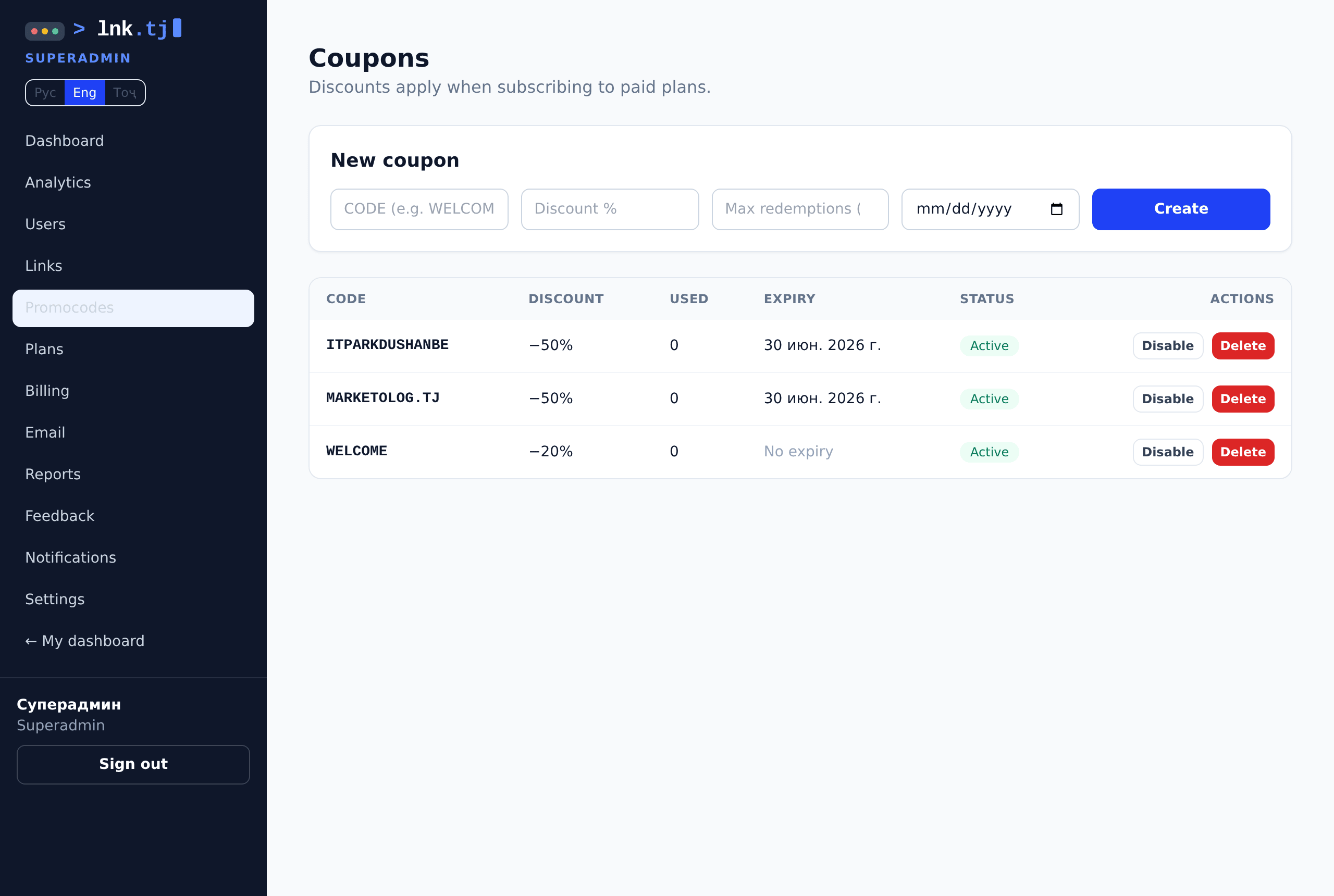
Create and hand out discount promo codes — the “Promocodes” section in the admin menu.
Set the code, the discount %, and optionally an expiry date and a redemption limit.
The user enters the code before paying; the discount doesn't stack with the yearly −20%.
Enable/disable or delete codes; the table shows usage and expiry.
Billing and reportssuperadmin
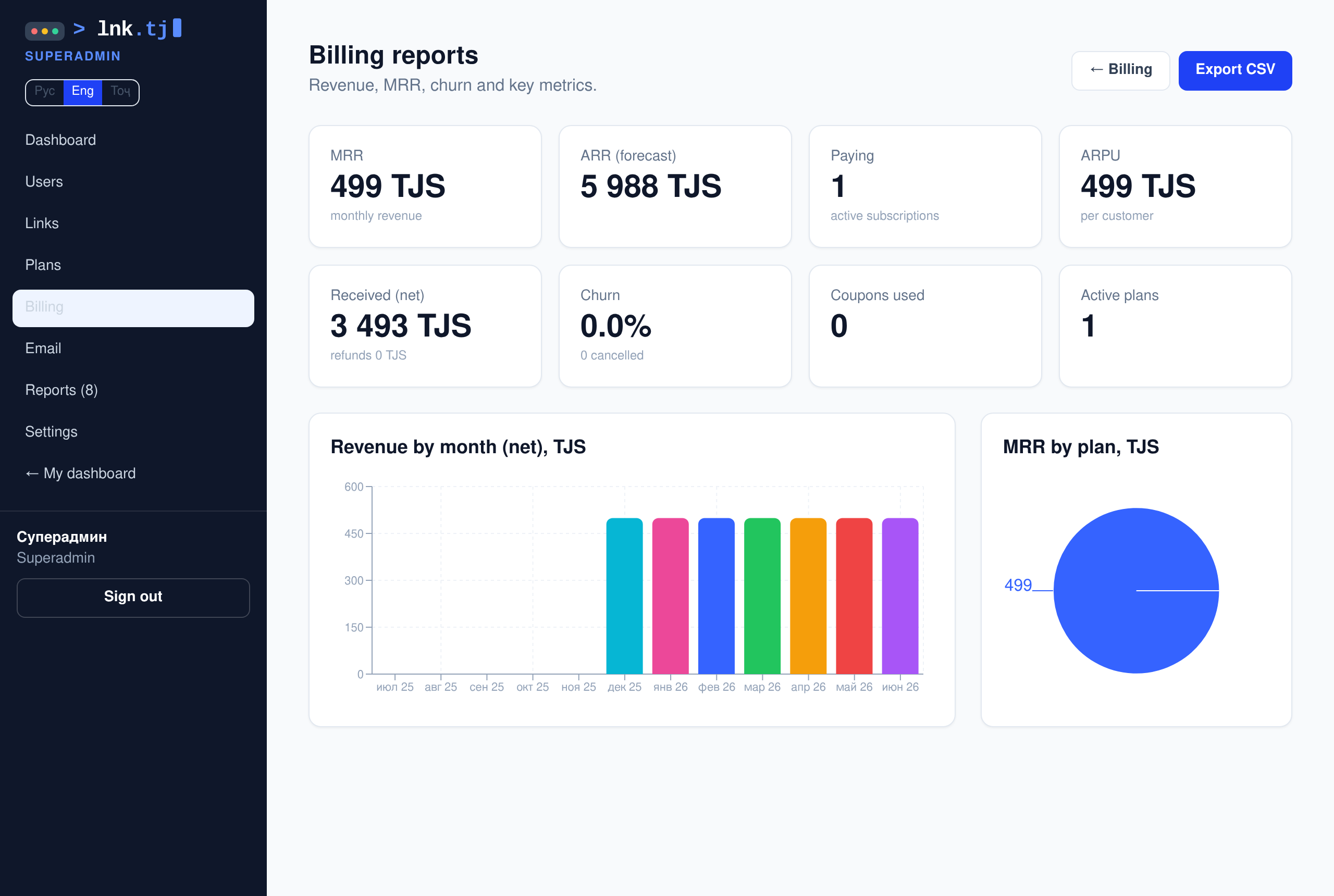
Revenue, MRR/ARR/ARPU, churn, revenue by month and plan. CSV export. Manage promo codes in the “Promocodes” section.
Platform settings and logsuperadmin
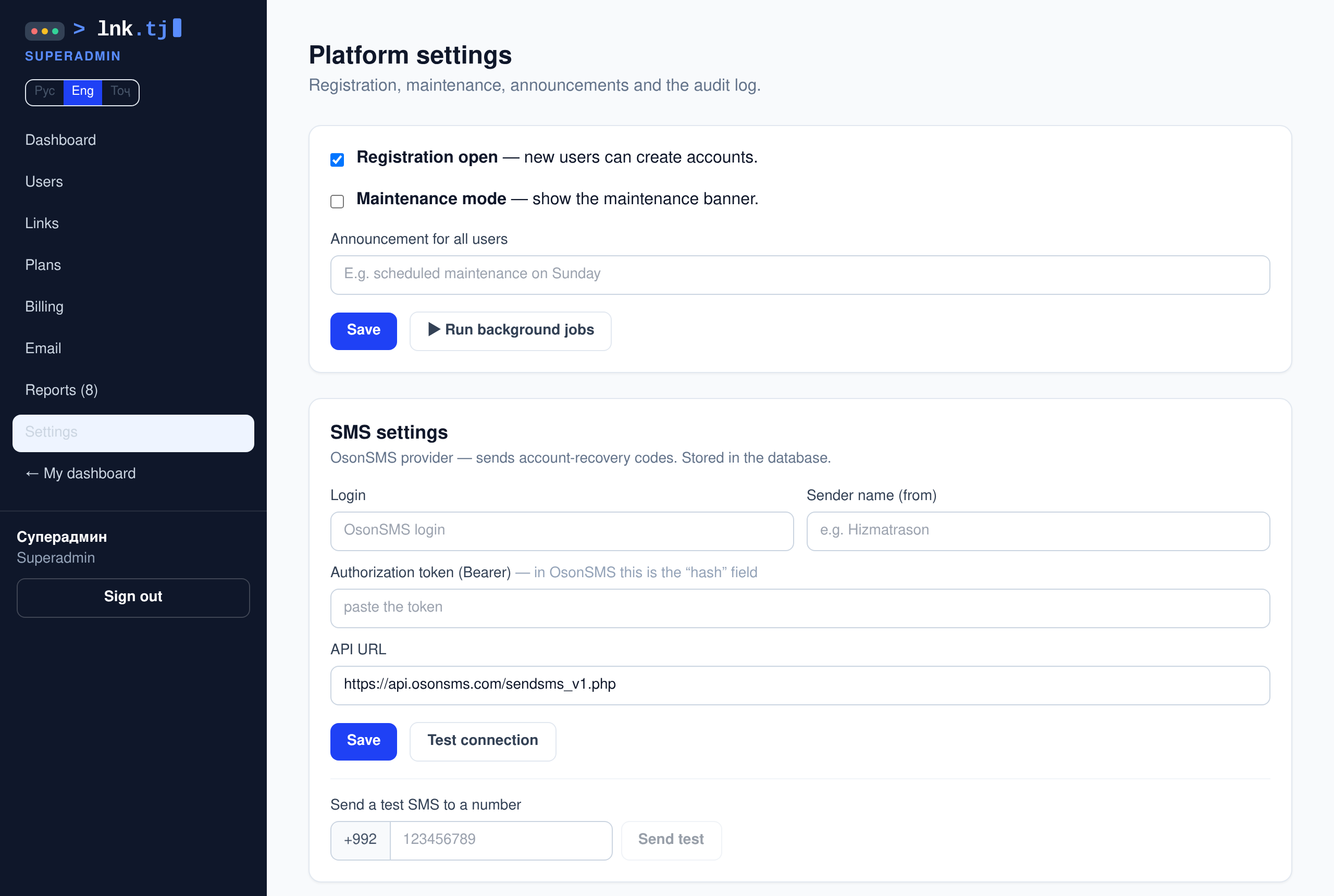
Enable/disable signups, maintenance mode, an announcement banner, running background jobs and the admin action log.